

Back to blog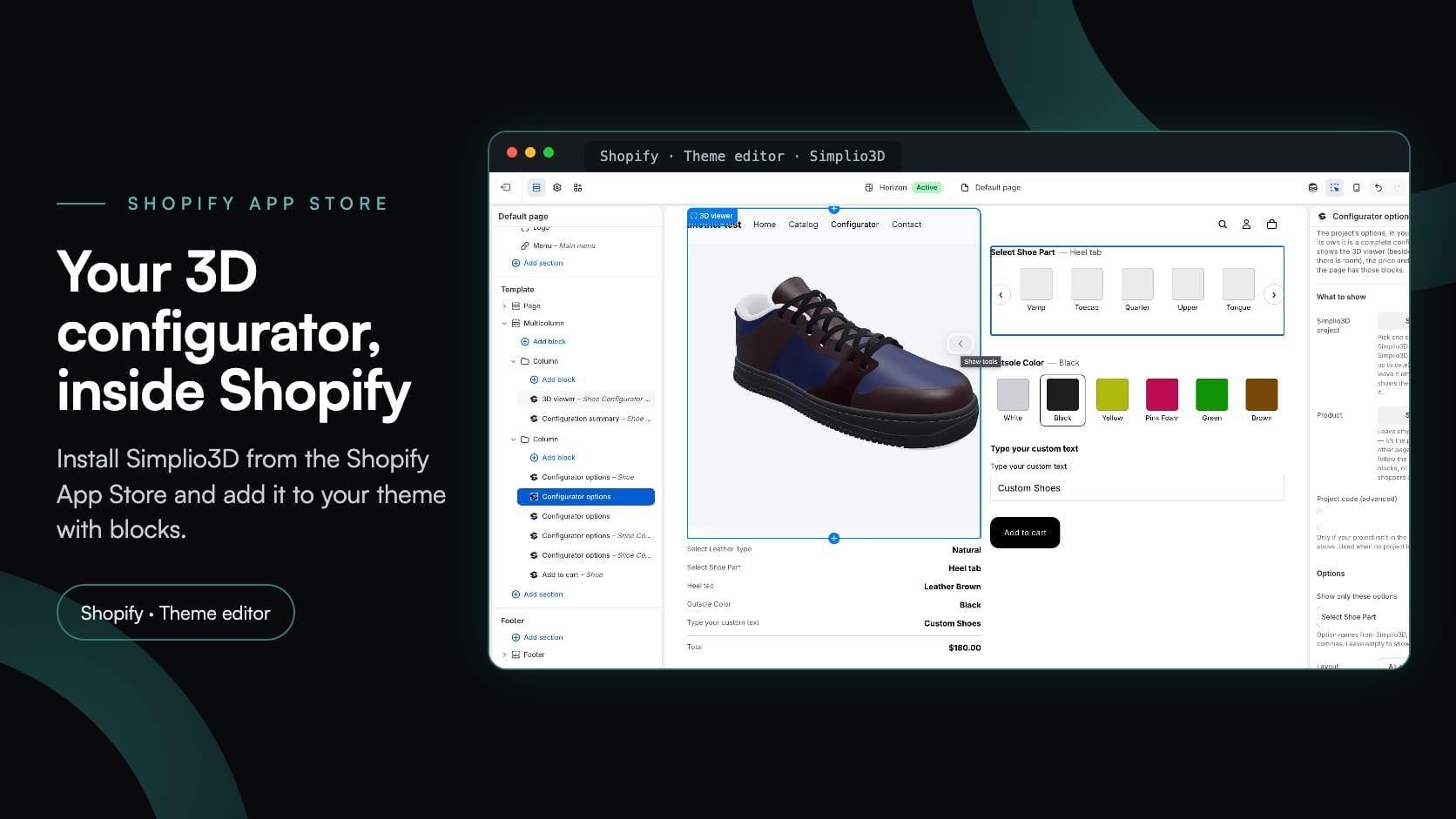
shopifyintegrationsproductnews
The Simplio3D Shopify App Is Now on the Shopify App Store
Simplio3D·
Simplio3D is now on the Shopify App Store. The Simplio3D Shopify app, listed at apps.shopify.com/simplio3d since 11 November 2026, brings your 3D product configurator into Shopify itself. You install it from your Shopify admin, connect your Simplio3D account and add the configurator to your theme with blocks that use your store’s own fonts, colours and buttons.
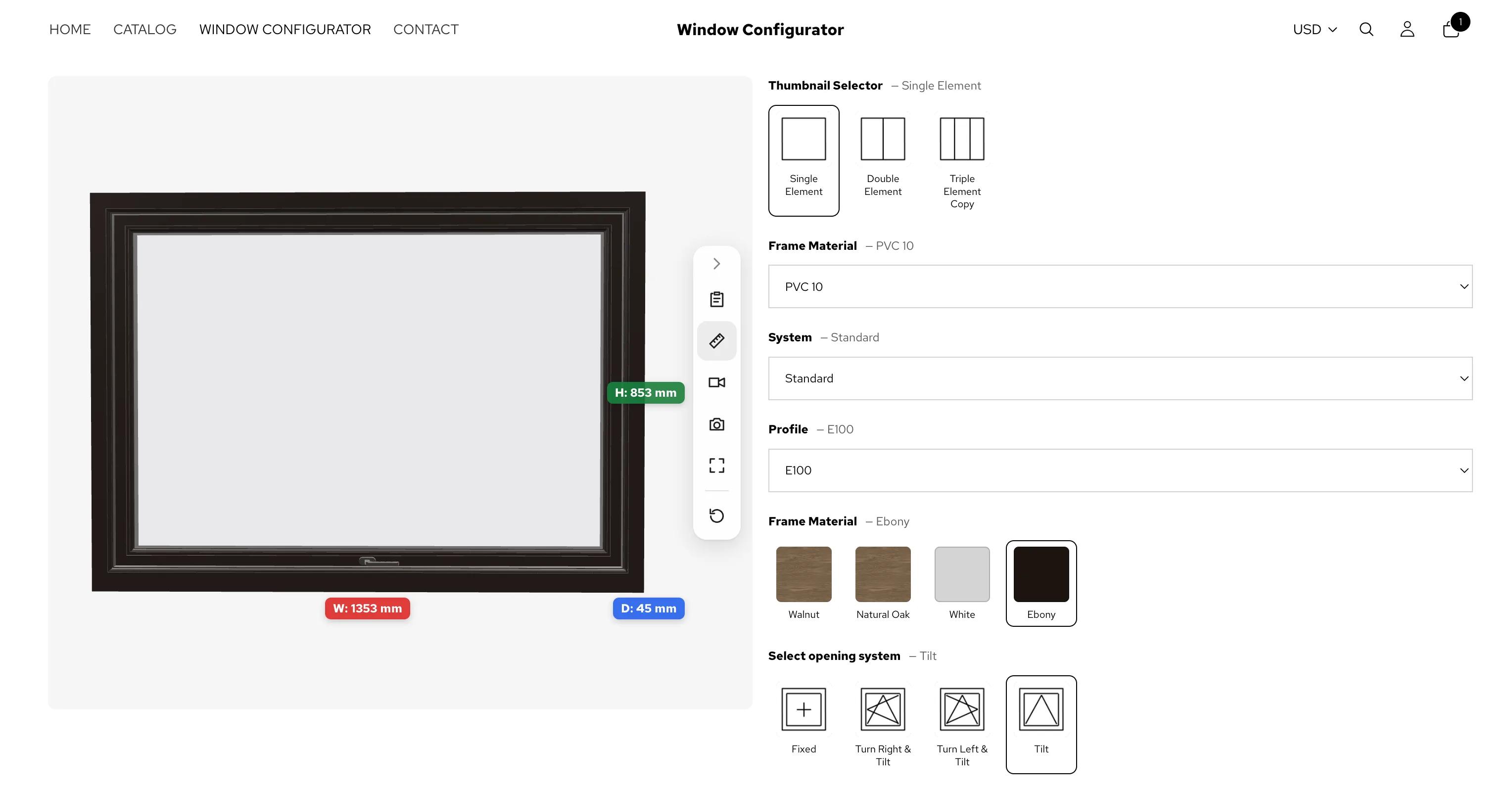
Shoppers choose materials, colours, sizes and text, see every choice on the 3D model, and add the configured product to the cart with each choice attached. This post covers what the app adds, how to install it, the blocks you can place in your theme, how the configured price reaches the cart, and what the plans cost.
There are two ways to connect Simplio3D to Shopify, and the app on the Shopify App Store is the recommended one. This is what it brings:
Connecting your own Shopify app with a Client ID and secret still works for a store you own. The table below compares the two.
| The Simplio3D app for Shopify | Your own Shopify app | |
|---|---|---|
| Where it starts | In Shopify: install it from the Shopify App Store, then connect it from Apps → Simplio3D | In Simplio3D: Dashboard → Integrations → Shopify, with your app’s Client ID and secret |
| Which stores | Any store, including a client’s | Only a store in the same Shopify organisation as your app |
| On the storefront | Blocks in the theme editor, or Simplio3D on every connected product | An embed snippet on the product page |
| Price in the cart | The product’s Shopify price or the configured price, chosen per product. Draft Order and, on Enterprise, the SKU-matched cart also work | A cart link at the catalogue price, a Draft Order with a price override, or an SKU-matched cart on Enterprise |
| How you pay for Simplio3D | Starter or Pro on your store’s Shopify bill, or the Simplio3D subscription you already have | Your Simplio3D subscription |
One Simplio3D workspace connects one Shopify store at a time. If you build for several clients, give each client store its own workspace.
From the Shopify App Store to a configurator on your product page.
Open Simplio3D on the Shopify App Store, click Install and choose your store. Shopify lists the permissions the app asks for: review them and approve.
Open Apps → Simplio3D in your Shopify admin and click Connect Simplio3D account to sign in. New to Simplio3D? Click Create a free account instead. Simplio3D opens in the same browser tab.
Pick the workspace this store belongs to and click Connect store. You return to your Shopify admin, where the connection finishes in a few seconds.
When the app asks, choose Starter or Pro on Shopify’s plan page. A new subscription starts with a 30-day free trial. If you already pay Simplio3D by card, nothing is charged through Shopify.
Click Connect a product in the app, or open a product and choose More actions → Customize with Simplio3D. Pick the Simplio3D project and click Connect Project.
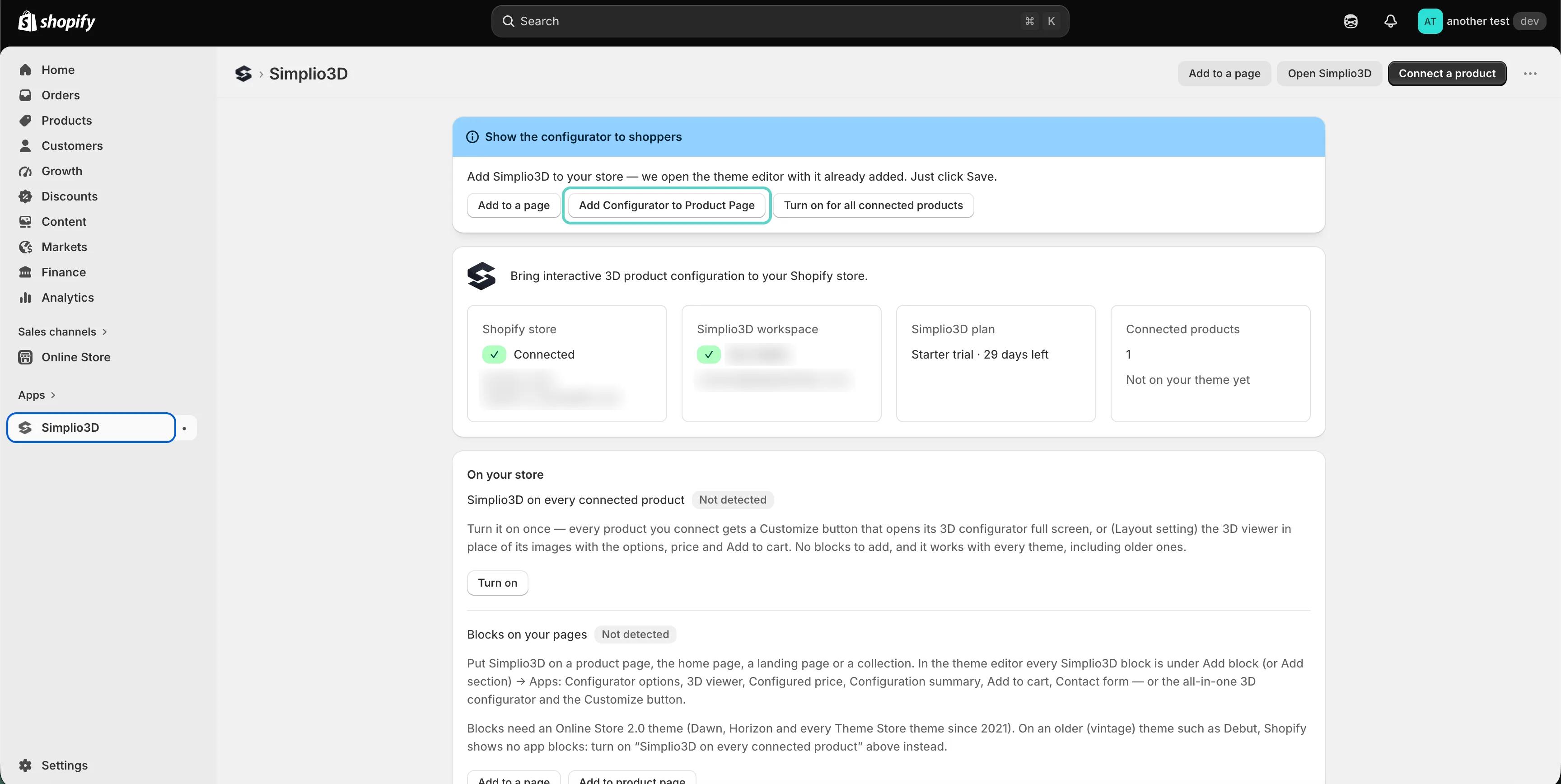
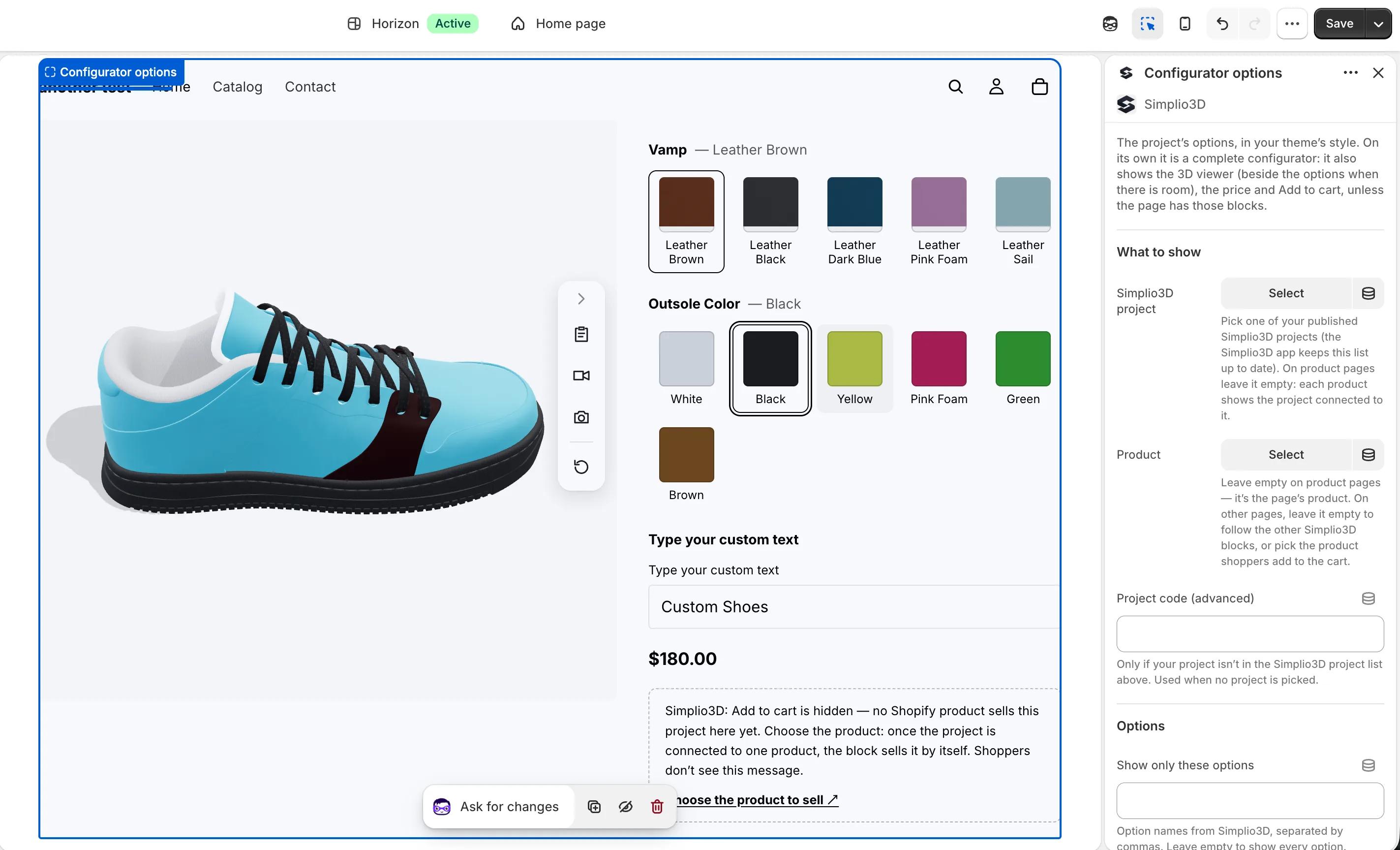
Click Add Configurator to Product Page. Shopify’s theme editor opens with the Configurator options block already added next to the product details. Click Save.
In the theme editor, every Simplio3D block is under Add block (or Add section) → Apps, on product pages, the home page, landing pages and collections. The blocks are drawn in your theme’s style and follow each other. On a product page, each one shows the project connected to that product. On any other page, you pick the project once, on one block, and the rest follow it.
Configurator options is a complete configurator on its own: it also shows the 3D viewer, the price and Add to cart, and leaves out any of them the page already has as a separate block, so a page never shows two prices or two buttons.
| Block | What it shows | What you can change |
|---|---|---|
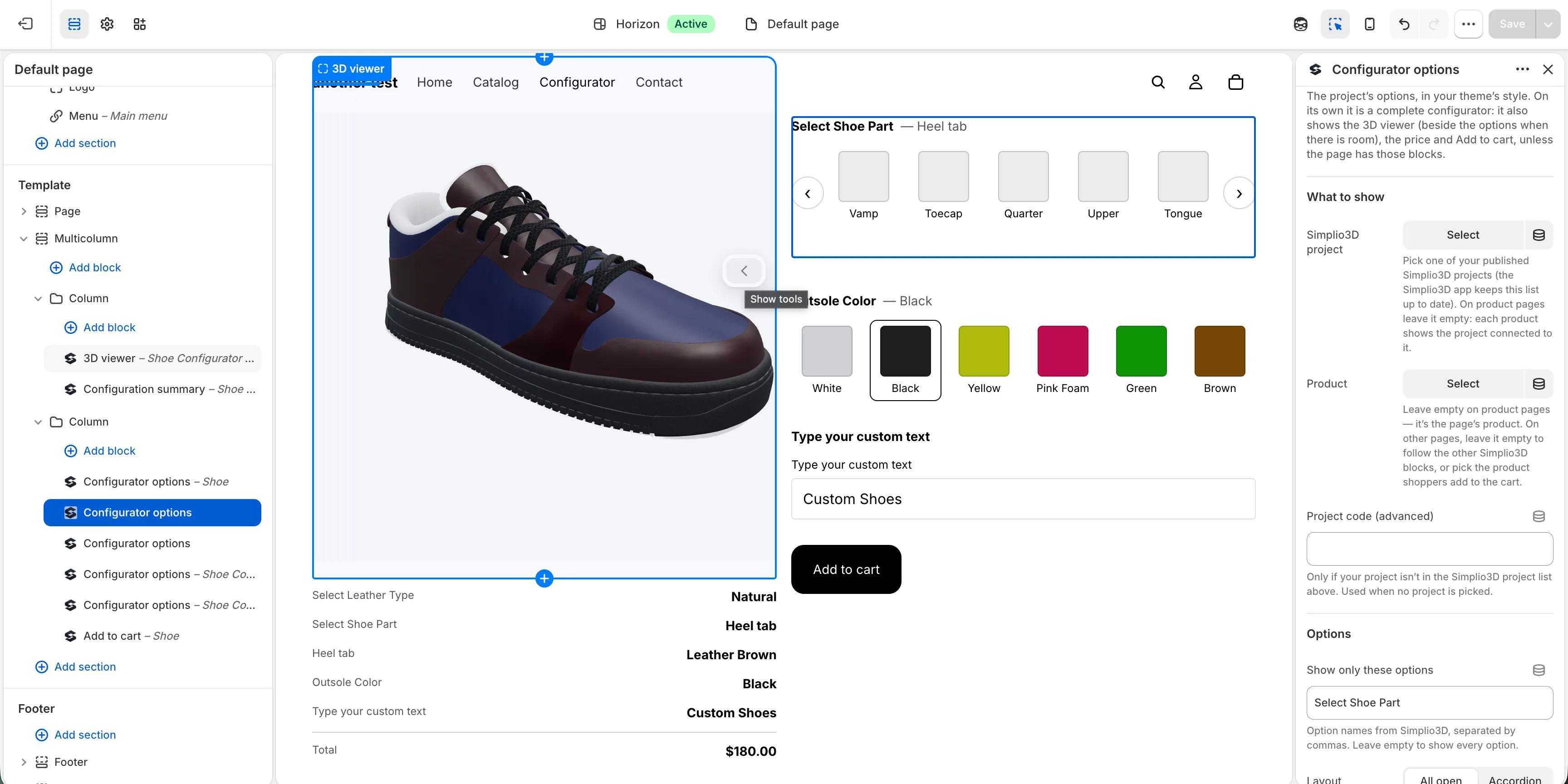
| Configurator options | The project’s options in your theme’s style, with the 3D viewer, the price and Add to cart unless the page has those blocks | Which options to show, all open or as an accordion, buttons or dropdowns, and the size, shape and names of swatches |
| 3D viewer | The 3D model, in place of the product images or where you put the block | Width, height on desktop and mobile, corner radius, the toolbar, AR, dimensions and the background |
| Configured price | The price of the shopper’s configuration, where that is the price they pay | The label, the size and the tax line |
| Configuration summary | Each choice the shopper made, and the total | The heading, the style, swatches, the total, and whether to list only what the shopper changed |
| Add to cart | A button that adds the product with the shopper’s configuration, using your theme’s variant and quantity | The label, the style, full width, and whether shoppers go to the cart or stay on the page |
| Contact form | The project’s own Simplio3D form, sent with the configuration to Requests in Simplio3D | The heading, the button label and the message after sending |
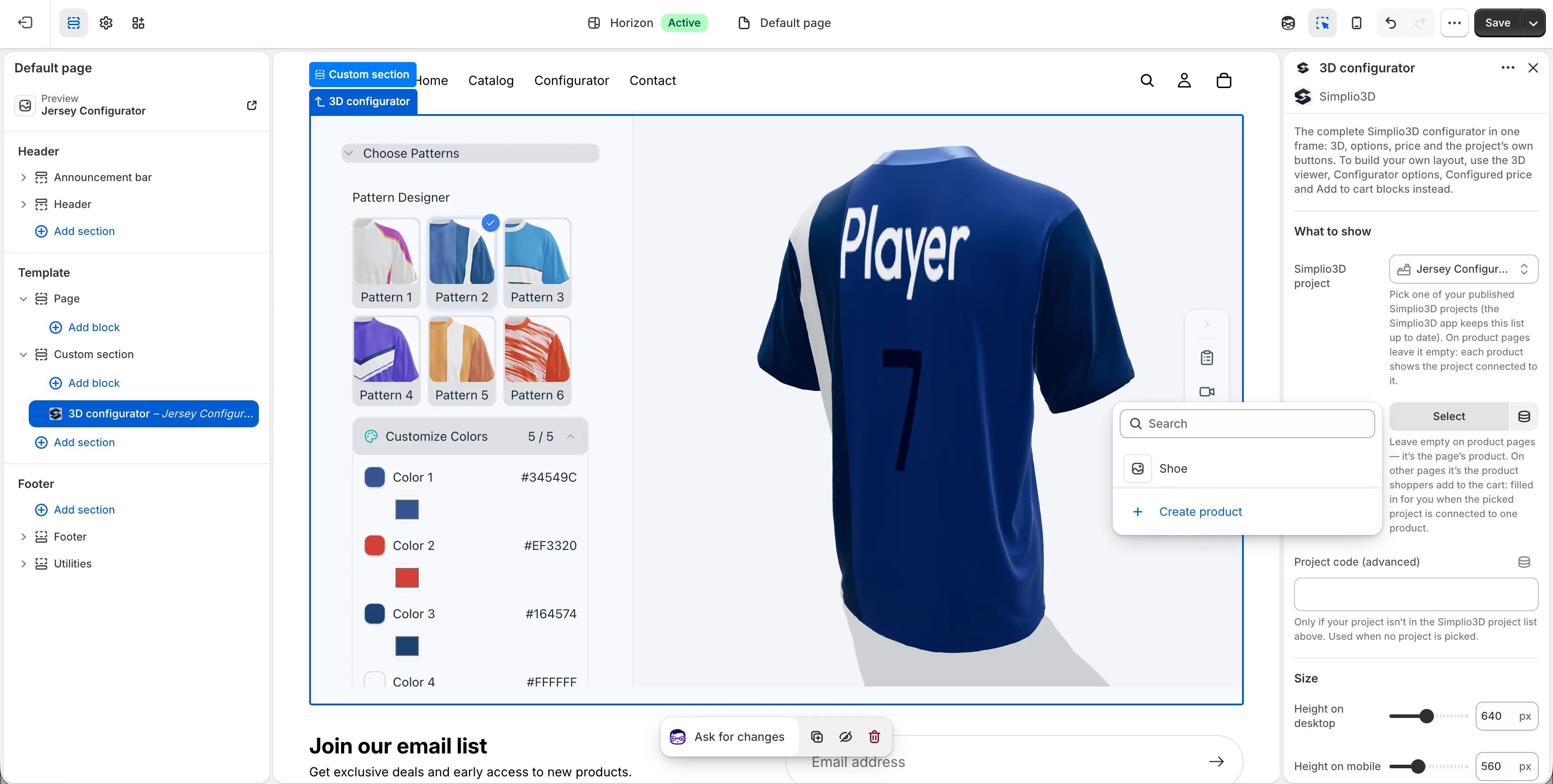
| 3D configurator | The complete configurator in one frame, as on its share link, with the project’s own buttons | Height on desktop and mobile, the corner radius, and an Add to cart button under it |
| Customize button | A button that opens the complete configurator full screen | The label, the style and full width |
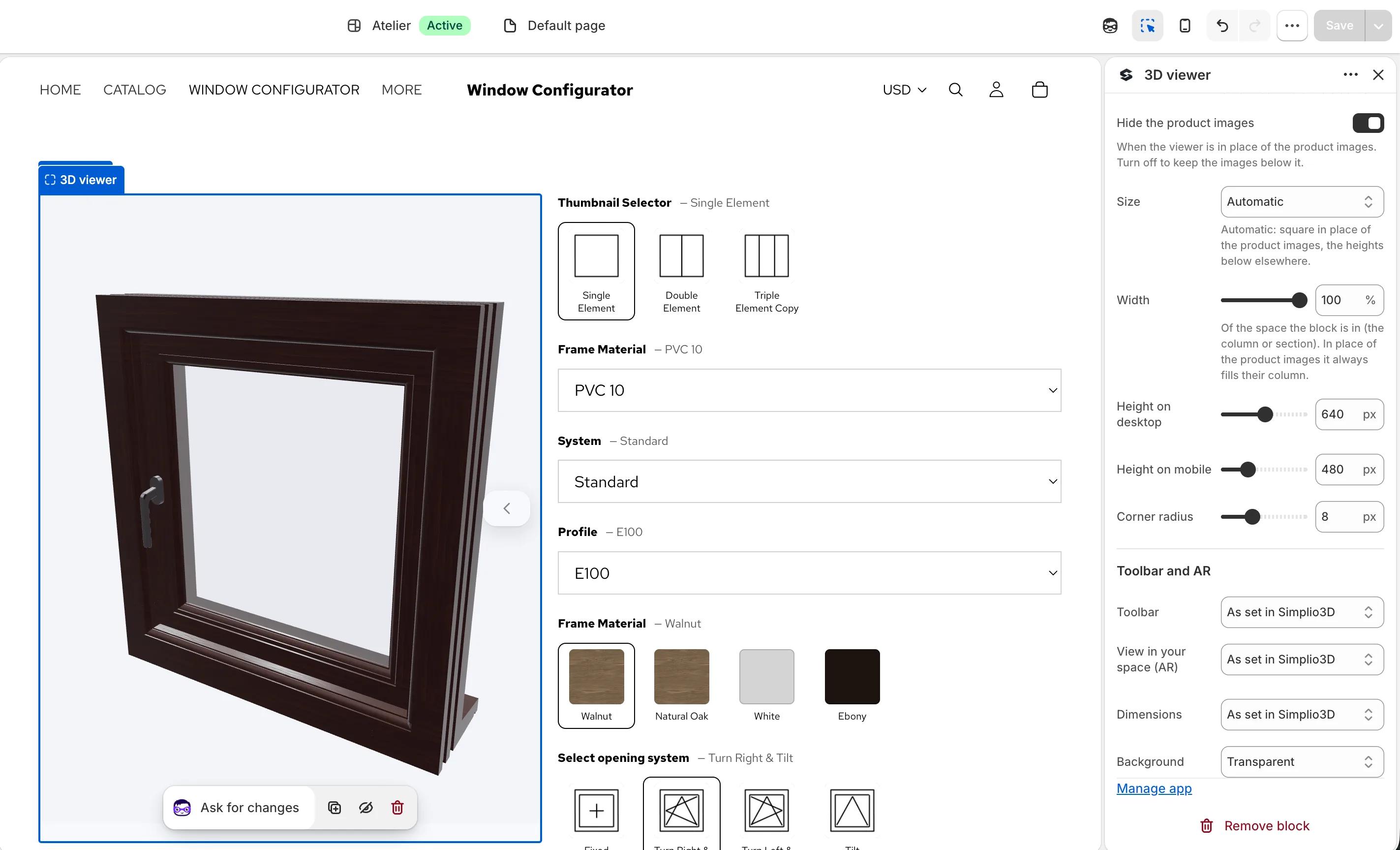
Because the blocks of one product share one configuration, you can build your own layout. Put the 3D viewer in place of the product images, the configured price under the title, and the options, the summary and Add to cart below them. A choice updates the 3D view, the price, the summary and what Add to cart adds, all at once.
For a product that needs the whole configurator, use the 3D configurator block, which shows it in one frame exactly as on its share link, or the Customize button, which opens it full screen. Modular projects open in the full configurator, because that is where modules are placed. On a theme without app blocks, turn on Simplio3D on every connected product in the app: every product you connect then gets a Customize button, or the 3D viewer with the options on the page, without adding a block.
Each connected product has one Price in the cart, chosen in the Simplio3D app under Manage next to the product:
The configured price needs a Configurator project with pricing turned on, priced in your store’s currency. The first time you choose it, Shopify asks for one more permission, to change what cart items cost, and Cart price and picture is turned on. Simplio3D prices the shopper’s choices again on its server, so a shopper can’t change the price, and if it can’t be charged, the Add to cart button hides rather than sell at the wrong price. Viewer and Modular projects use the Shopify product price.
The same card saves a picture of each configuration with the order, as a link in the line’s details. Draft Order checkout and, on Enterprise, the SKU-matched cart keep working with the app, for stores that take their price from Simplio3D that way.
With the Simplio3D Shopify app you choose a Simplio3D plan on Shopify’s own plan page and pay for it on your store’s Shopify bill. You can switch between Starter and Pro, or cancel, on the same page at any time.
| Plan | Price | What it includes |
|---|---|---|
| Starter | $29 a month or $290 a year | Up to 40 projects, 2 team members, Viewer and Configurator projects |
| Pro | $49 a month or $490 a year | 140 projects, 10 team members, Modular projects, API and SDK access |
Enterprise isn’t sold through the Shopify app, and a workspace that already has an Enterprise plan keeps it. If you already pay Simplio3D by card, the app says so and charges nothing through Shopify. To move that subscription to your Shopify bill, open Billing & Plan in the Simplio3D dashboard and choose Move billing to Shopify.
Agencies and freelancers never need a client’s password or a seat in their Shopify organisation. The client installs the Simplio3D app in their own Shopify admin. Whoever clicks Connect Simplio3D account signs in and picks the workspace: the client’s own, or a client workspace you have joined on an Admin seat. Everyone who can open the app in that Shopify admin sees the connected workspace’s projects, so connect each store to that client’s workspace.
On the Shopify App Store at apps.shopify.com/simplio3d, or by searching for Simplio3D in the App Store. It is listed under Digital Artflow SRL, the company behind Simplio3D.
Starter is $29 a month or $290 a year, and Pro is $49 a month or $490 a year. Both are billed on your store’s Shopify bill, and a new subscription starts with a 30-day free trial, so nothing is charged until it ends.
No. You add the blocks in Shopify’s theme editor, and Add Configurator to Product Page or Add to a page in the app opens the theme editor with the block already added. There is no code to paste.
The blocks work in any Online Store 2.0 theme, which includes Dawn, Horizon and every Theme Store theme since 2021. On an older theme such as Debut, turn on Simplio3D on every connected product in the app instead: it works with every theme.
It asks to read products, to link them to your projects and check SKUs, and to write draft orders, for Draft Order checkout. Cart price and picture adds one optional permission, cart transforms, which is handed back when you turn the feature off. The app asks for none of Shopify’s protected customer fields: names, emails, phone numbers and addresses.
No. A store you own that is connected with your own Shopify app keeps working as it is. Install the Simplio3D app when you need it on a client’s store, want the theme blocks, or want the standard cart to charge the configured price.
Yes. The 3D viewer’s View in your space button uses AR Quick Look on iPhone and iPad and Scene Viewer on Android, straight from your store’s page. On a computer, a QR code opens the same product and configuration on the shopper’s phone.
How a Shopify 3D product configurator fits your store, from the theme blocks to Draft Orders and SKU-matched carts.
The Simplio3D plugin for WordPress builds configurator pages from native blocks, with WooCommerce prices verified by Simplio3D.
Guides, tutorials and news from the Simplio3D team.
Build a Configurator with Claude: the Simplio3D Plugin Tutorial
Install the Simplio3D plugin in Claude, sign in once and build your first 3D product configurator from a prompt: setup, permissions, the first prompts, and what stays in your hands.
How a Product Configurator Gets Built (2026 Workflow)
The decisions that determine whether a configurator project succeeds — defining the requirement, choosing the project type, building options, logic and pricing, and where AI now does the work.
Simplio3D is Included in the Gartner Innovation Insight for Visual Configuration Report
In the 2020 Innovation Insight for Visual Configuration report, Simplio3D is included for the first time in the list of visual configuration vendors as a software solution provider for product configuration.
The Simplio3D Plugin for ChatGPT: a Step-by-Step Tutorial
Simplio3D now has an official plugin in ChatGPT’s Plugins directory. Install it, connect your workspace and ask ChatGPT to audit, price, build and manage your 3D configurators.
Preparing 3D Models for Simplio3D: A Practical Guide
Structure, UV mapping, optimisation and pivots — the four things that decide whether a 3D model becomes a working configurator or a troubleshooting exercise.
Own a 3D product configurator to drive sales and generate proposals directly from your website
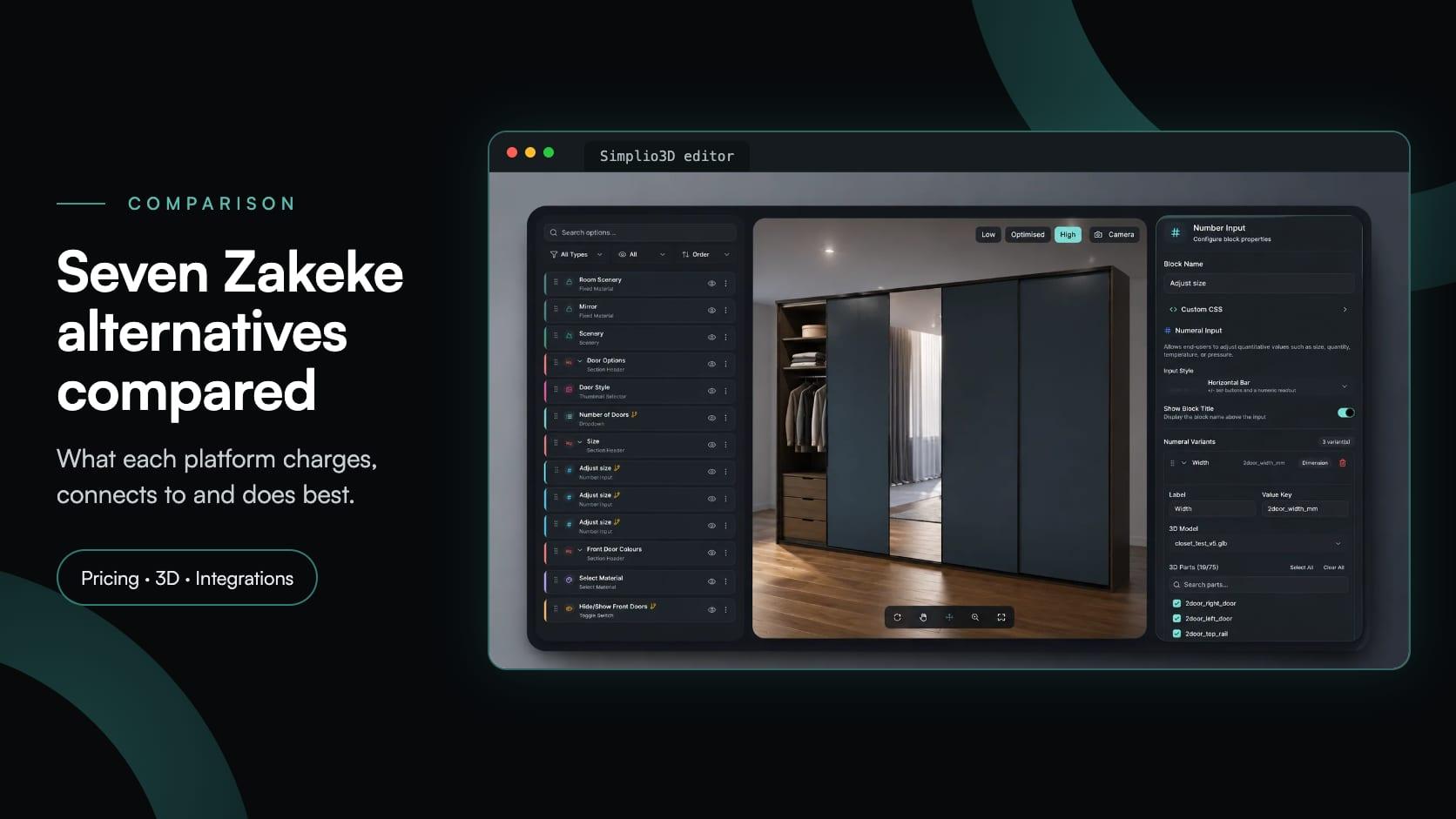
Looking for a Zakeke alternative? What Zakeke offers today, when it is worth staying, and seven alternatives compared on 3D, rules, stores and published prices.
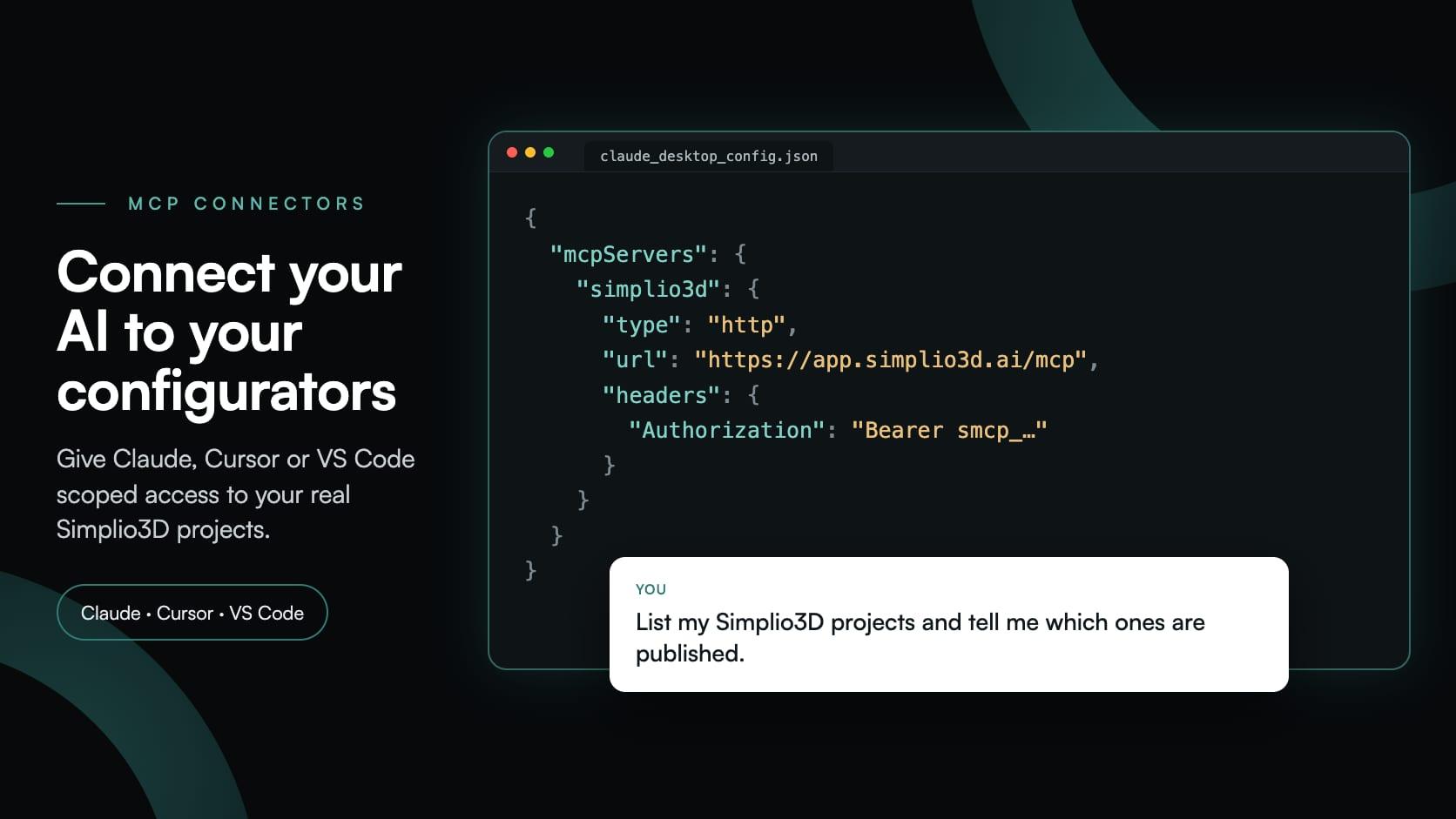
MCP connectors let Claude, Cursor or VS Code work with your real Simplio3D projects. What a connected agent can read and change, how approval works, and how to connect one.
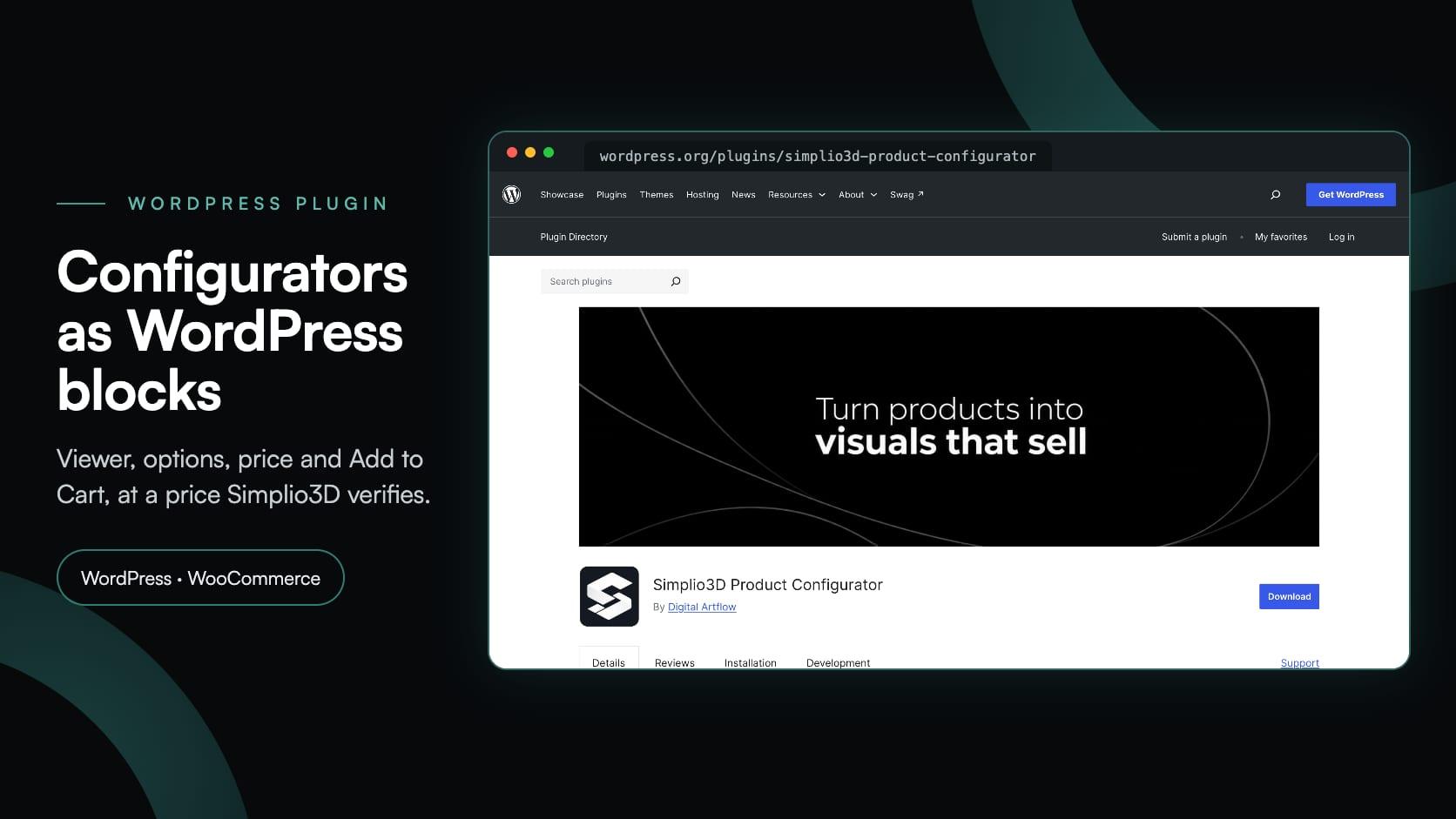
Embed a 3D product configurator on WordPress and let customers add their configured product straight to the WooCommerce basket — with the price your own rules calculated.