

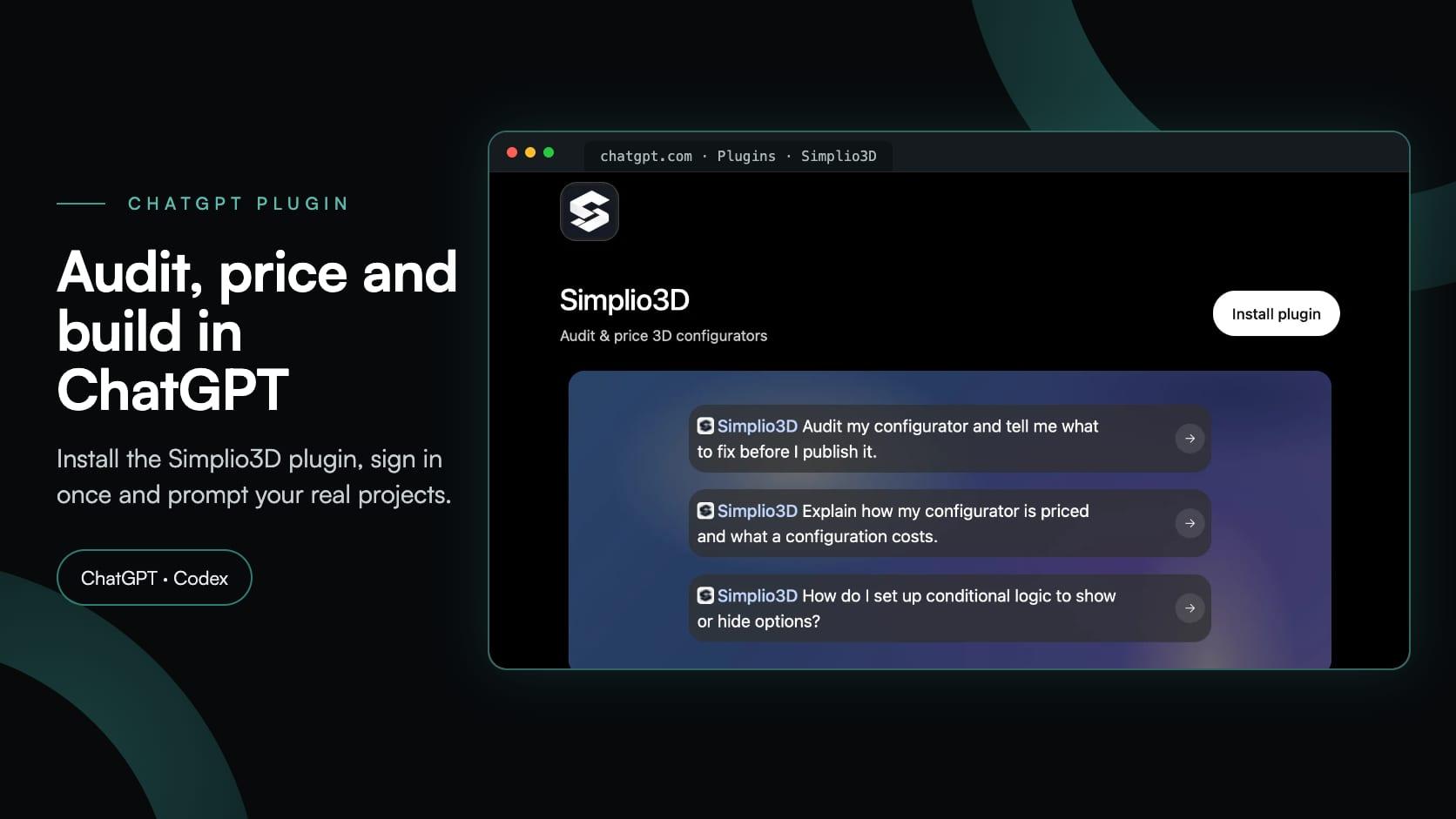
Simplio3D now has an official plugin in ChatGPT’s Plugins directory. The Simplio3D plugin for ChatGPT connects ChatGPT to your Simplio3D workspace, so it answers from your real configurators instead of the screenshots and option lists you would otherwise paste into a chat. Ask it to audit a project before you publish it, explain why an option is hidden or work out what a configuration costs. Grant write access, and it can build and change projects in the same conversation.
This tutorial follows every screen of the setup, from finding the plugin to approving its access on Simplio3D, then runs a first audit. It ends with prompts for building and managing configurators, and with the decisions that stay in your hands.
What the Simplio3D plugin for ChatGPT does
Simplio3D publishes the plugin in OpenAI’s plugin directory, which ChatGPT and Codex share. Installing it gives ChatGPT two things:
- A connection to Simplio3D’s MCP server,
https://app.simplio3d.ai/mcp. MCP, the Model Context Protocol, is the open standard AI apps use to call outside tools. Claude, Cursor and VS Code connect to the same server, with the same sign-in, permissions and approval rules: there is no separate ChatGPT integration. - Seven skills: instructions that teach ChatGPT to use Simplio3D’s tools well, such as checking the real 3D model before it names a part and passing on the notes a price calculation returns. The skills only read. What ChatGPT may change depends on the access you grant when you connect.
Nothing is installed on your computer, and the plugin holds no API keys or passwords. Simplio3D checks every request against your plan, your role in the workspace and the access you approved.
| Skill | What it does | Try asking |
|---|---|---|
| Workspace navigation | Finds projects, options, materials and 3D models by the names you use, shows what an AI assistant changed or proposed, and explains connection and permission messages | “List my Simplio3D projects.” |
| Configurator audit | Audits a project area by area, from 3D targets and rules to pricing, SKUs and the quote form, and says where to fix each finding in the editor | “Audit my configurator and tell me what to fix before I publish it.” |
| Hidden option diagnosis | Works out why an option, variant or 3D part is hidden for a given set of choices, from the project’s own rules | “Why can’t I pick the P120 profile in my window configurator?” |
| 3D target check | Confirms that every part an option, rule or animation points at exists in the model file, and explains the 3D scene | “Do my options point at parts that exist in the model?” |
| Pricing and CPQ | Explains how a project is priced, including markup, quantity tiers, discounts, charges, shipping and tax, calculates a configuration’s price on Simplio3D’s server and checks SKUs | “What does the Eames chair cost with walnut wood and black leather?” |
| Publish readiness | Gives a ready or not-ready verdict with the list of what to fix first. It never publishes | “Is my jersey configurator ready to publish?” |
| Simplio3D help | Answers how-to questions from the official documentation and links the page it used | “How do I set up conditional logic to show or hide options?” |
Before you start
- A Simplio3D account with a confirmed email address, on the Starter, Pro or Enterprise plan, or in the 30-day trial every new account starts with. On Starter, ChatGPT follows the dashboard’s plan rules: it can’t create Modular projects or duplicate a project.
- A ChatGPT account to sign in with.
- A role that can edit, if ChatGPT should build or change anything. Someone with a Viewer seat in a team workspace can only read, whatever they approve.
- Optionally, a 3D model under Dashboard → Assets. ChatGPT can’t upload files, but it can start a project from a template or import a model from Simplio3D’s curated library.
How to install the Simplio3D plugin in ChatGPT
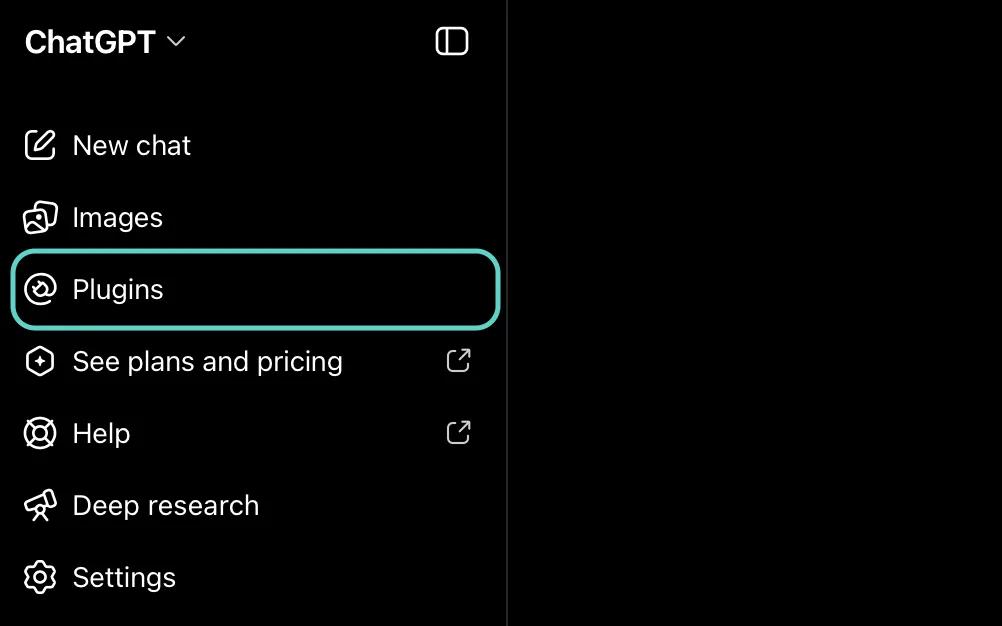
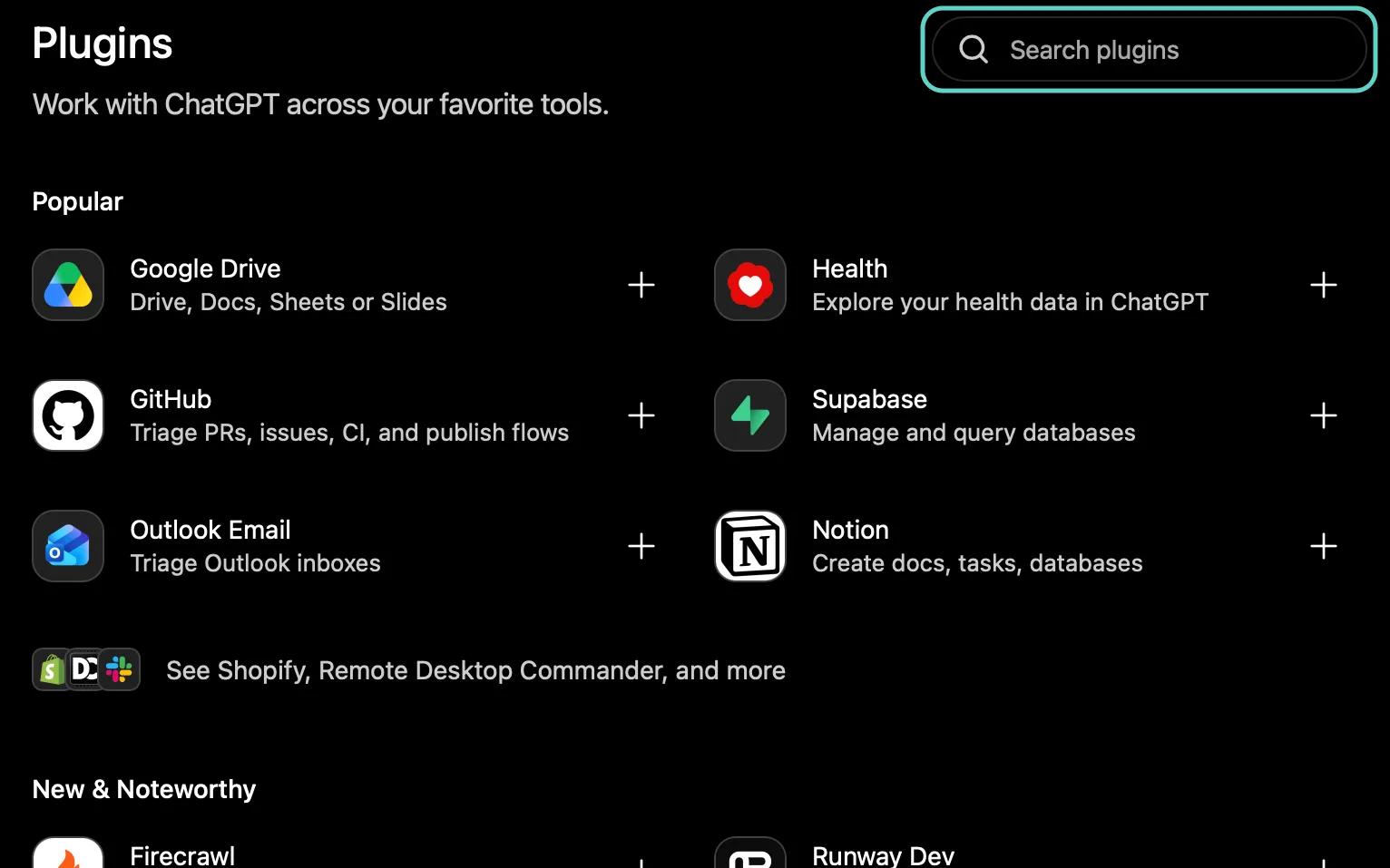
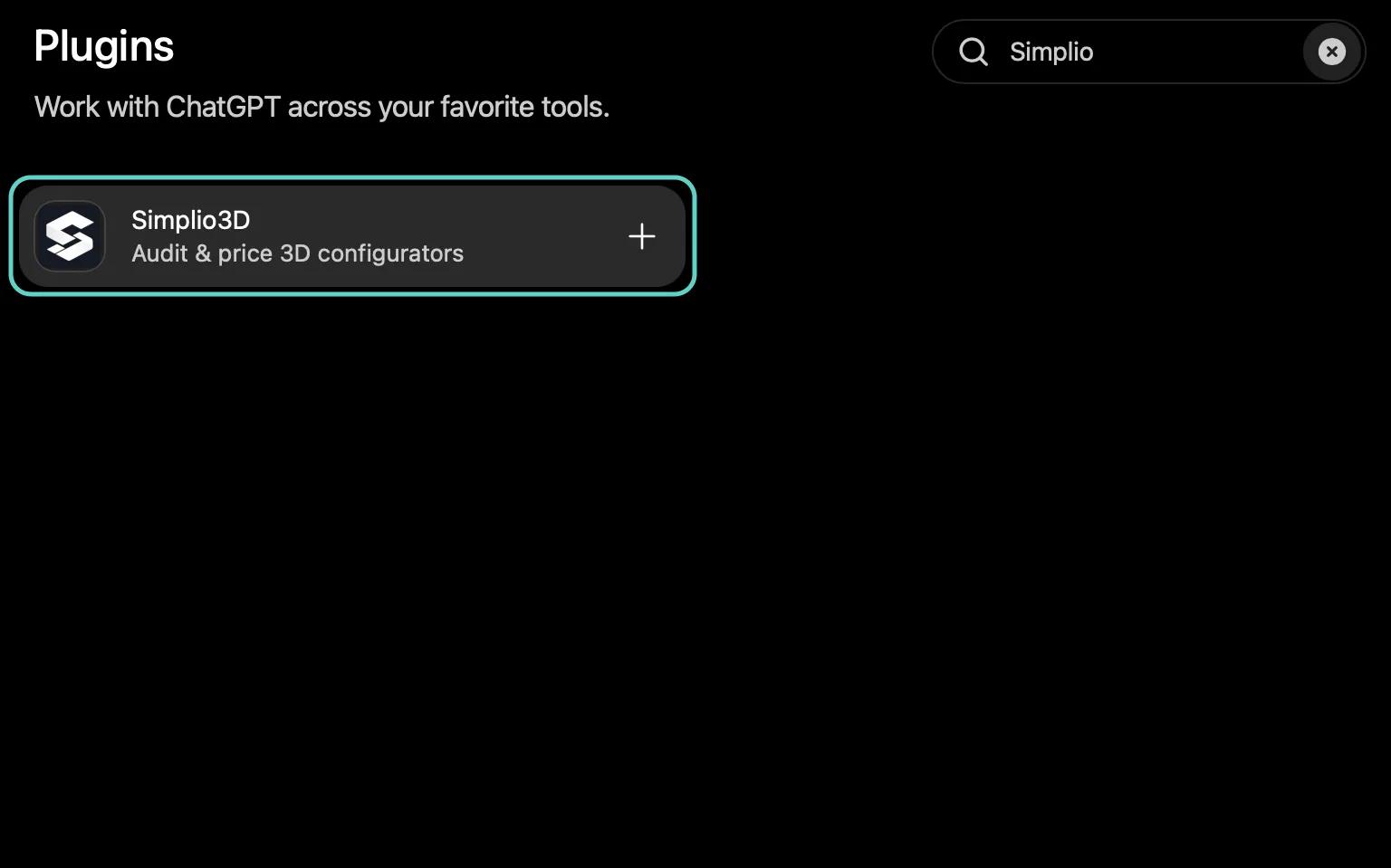
The screenshots below follow the same numbers.
Open Plugins
In ChatGPT’s sidebar, click Plugins.
Find Simplio3D
Type Simplio3D into Search plugins, then click the result: Simplio3D, Audit & price 3D configurators.
Install the plugin
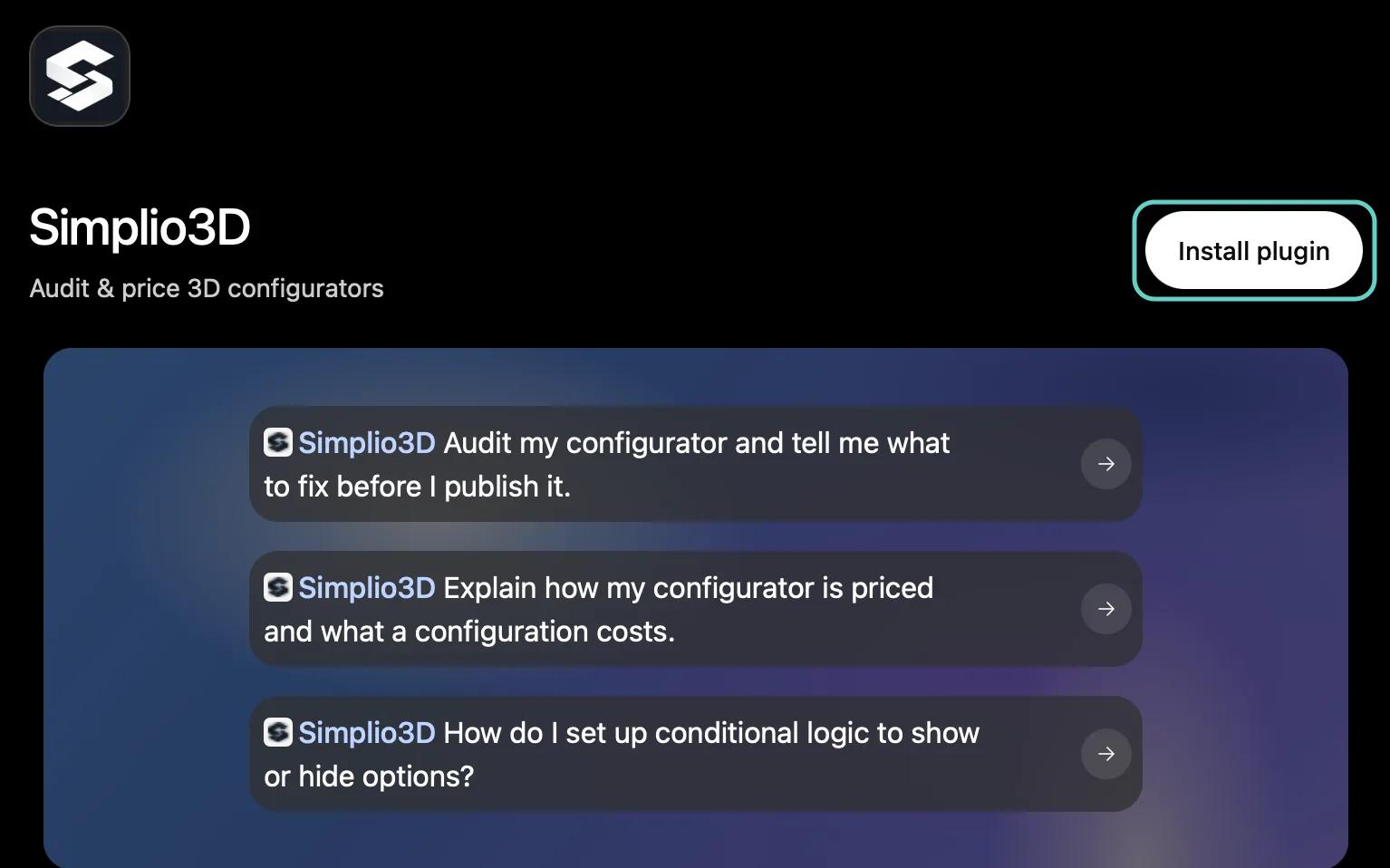
The plugin’s page describes what it does and suggests three prompts. Click Install plugin.
Connect Simplio3D
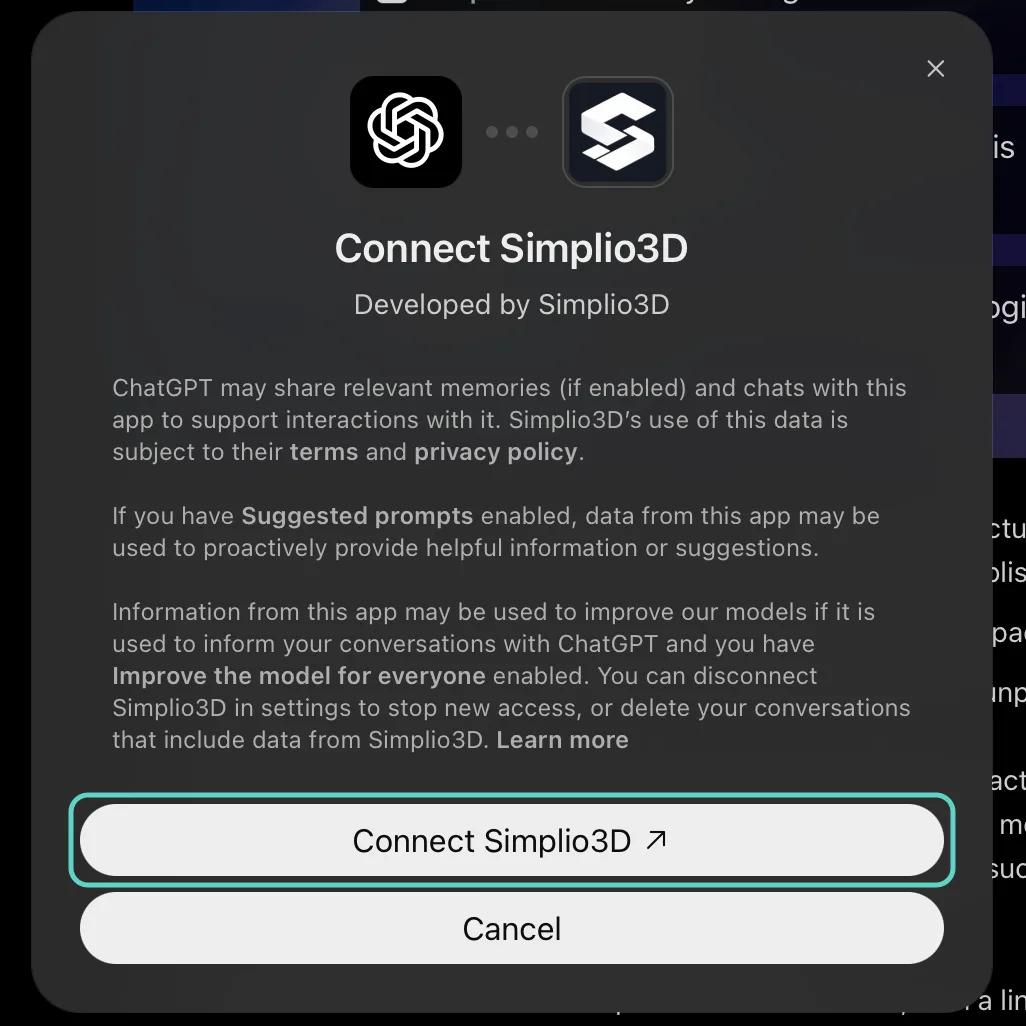
ChatGPT explains what it shares with the plugin. Click Connect Simplio3D, and a Simplio3D page opens in a new tab.
Sign in to Simplio3D
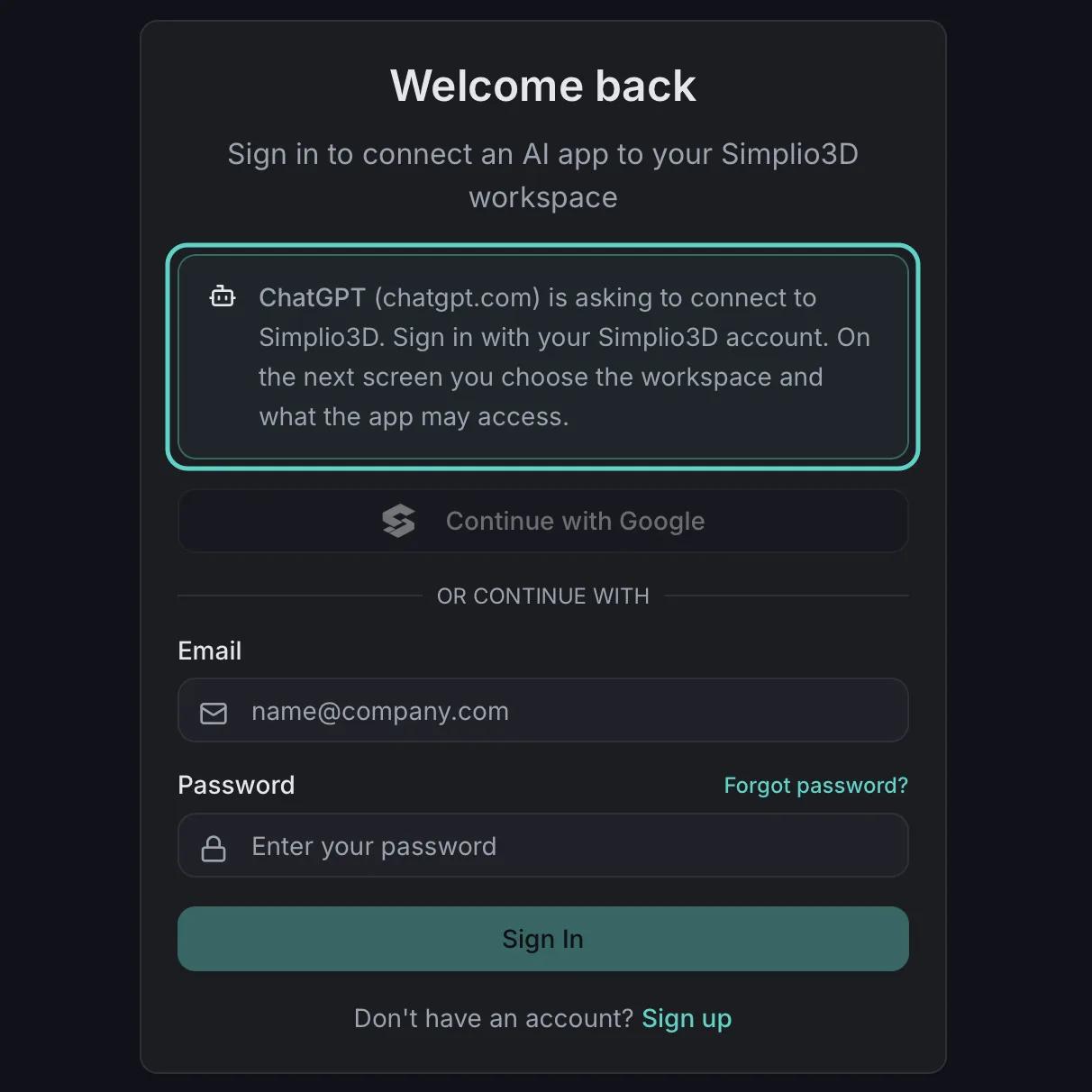
Sign in with your Simplio3D account, with Google or your email and password. The page names ChatGPT as the app asking to connect. You never type your Simplio3D password into ChatGPT itself.
Choose the workspace and the access
Pick the workspace ChatGPT should work in. Read access is ticked for you. Tick write access for anything ChatGPT should build or change, as the next section explains, then click Authorize.
Start a chat
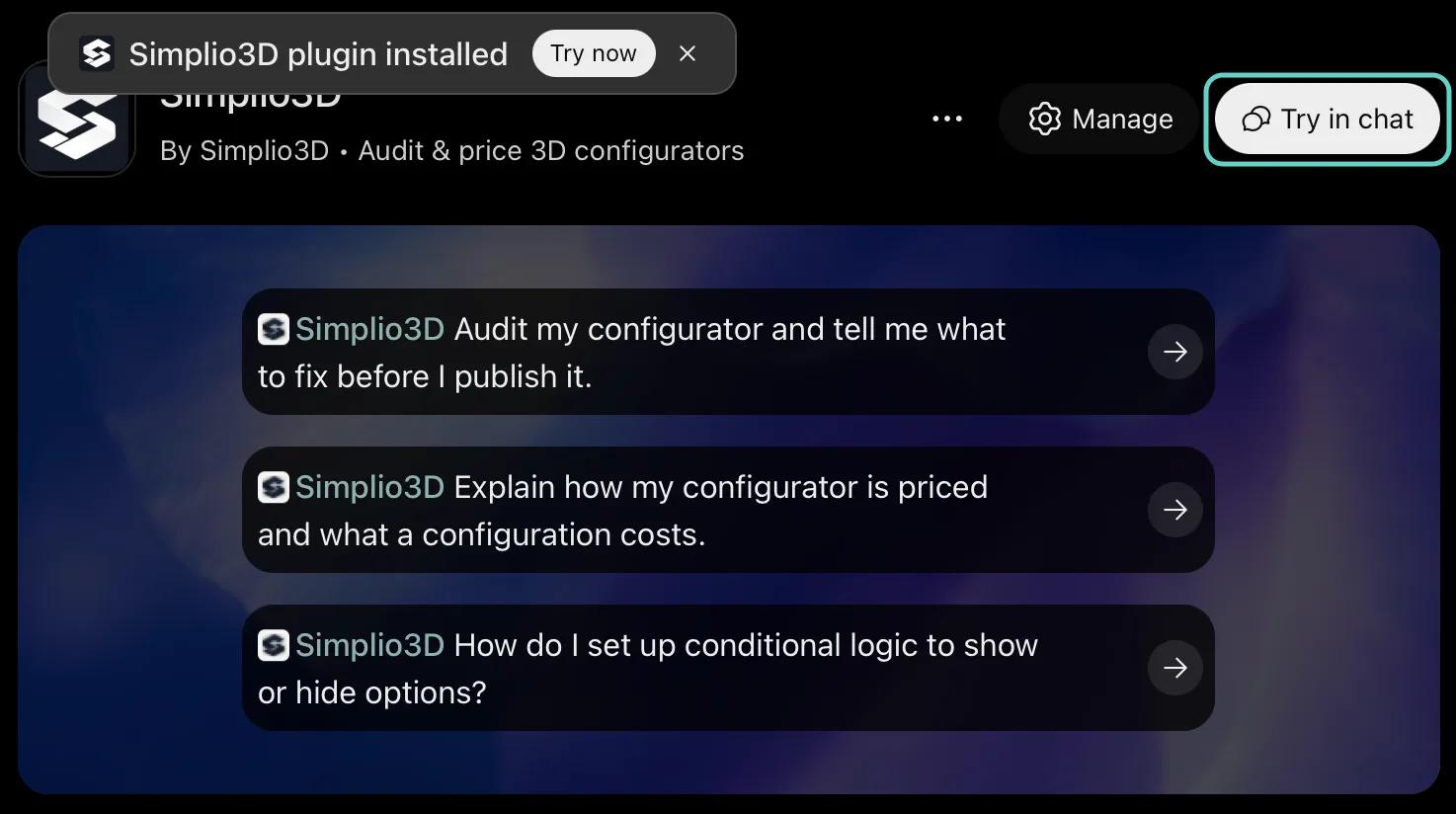
Back in ChatGPT, the plugin page shows Simplio3D as installed. Click Try in chat, or one of the suggested prompts.
Choose what ChatGPT may read and change
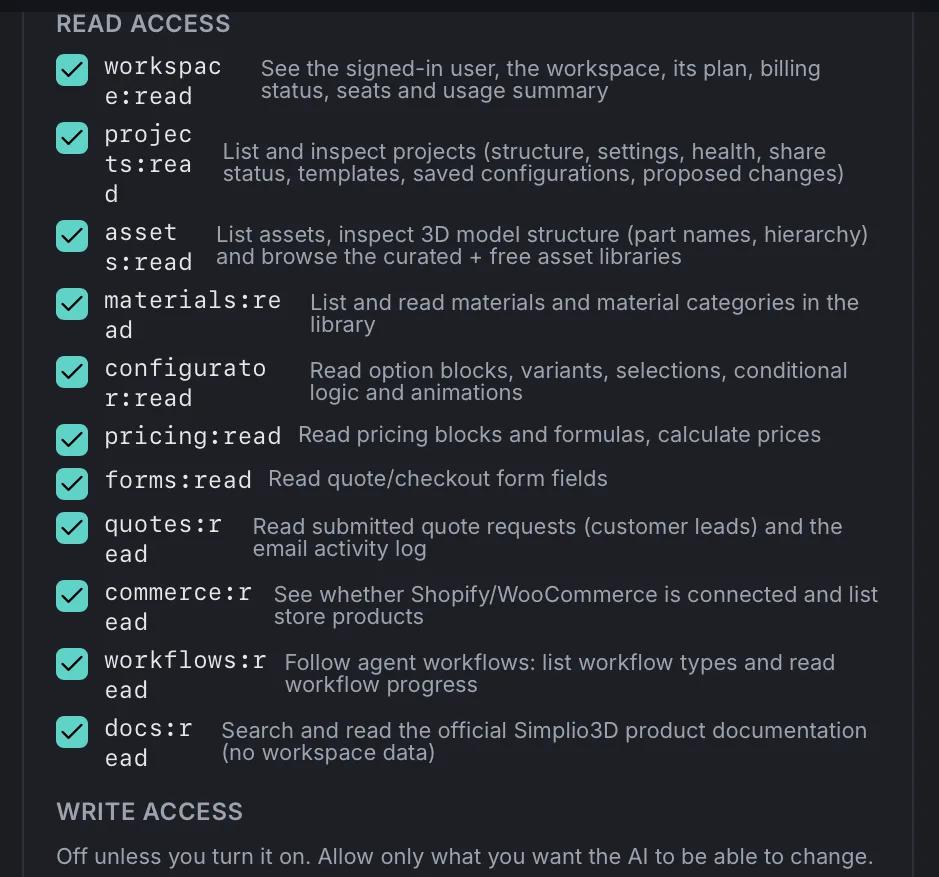
After you sign in, Simplio3D’s approval page asks which workspace ChatGPT should use and what it may do there. Read access is ticked for you. Customer quote requests and your store’s product list stay off until you tick them, and so does all write access. With that default, ChatGPT can audit, explain, price and answer questions, which is why its plugin listing describes Simplio3D as read-only.
To build and manage configurators from ChatGPT, tick write access for the areas it should change, then click Authorize. In the screenshots below every box is ticked; you only need the areas you plan to use.
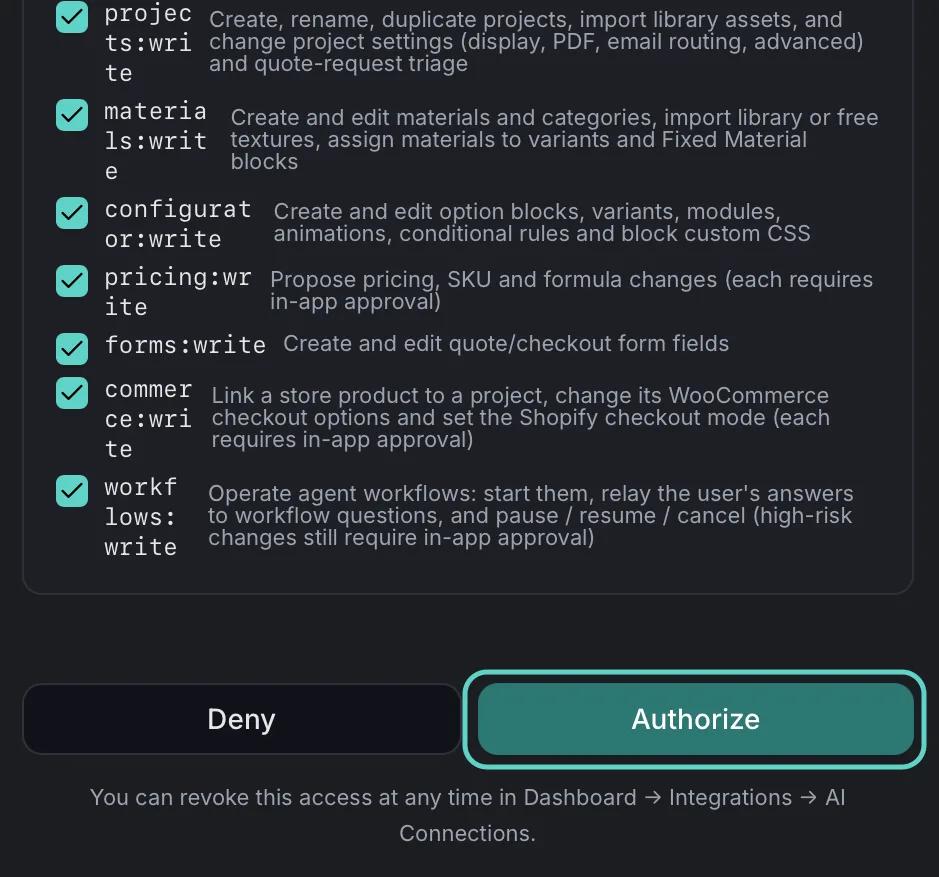
| Area | Read access (ticked for you) | Write access (if you tick it) | Tick write so ChatGPT can |
|---|---|---|---|
| Projects | Lists projects and reads their settings, 3D structure, health and sharing status | Creates, renames and duplicates projects, copies templates, imports library models and changes project settings | Set up a new configurator |
| Configurator | Reads option blocks, variants, conditional rules and animations | Adds and edits option blocks, variants, rules and modules | Add options and show/hide rules |
| Materials | Reads the material library and its categories | Creates, imports and assigns materials | Add finishes, fabrics and colours |
| Forms | Reads quote and checkout form fields | Adds and edits form fields | Shape the quote form |
| Pricing | Reads pricing blocks and formulas, and calculates prices | Proposes price, SKU and formula changes, which you approve in Simplio3D | Suggest prices |
| Workflows | Follows multi-step AI jobs | Starts, answers, pauses and cancels them | Build from a brief, or run a long job |
| Store | Off by default: whether Shopify or WooCommerce is connected, and its products | Proposes a product link or checkout mode, which you approve | Link a configurator to a store product |
| Quote requests | Off by default: customer quote requests and the email log | No write access | Nothing: grant read only if ChatGPT should see your leads |
| Workspace, 3D assets, documentation | Your plan and seats, the asset library and model structure, the official docs | No write access | Nothing: these stay read-only |
For most building, tick Projects, Configurator, Materials and Forms. Add Pricing if ChatGPT should suggest prices, and Workflows for longer jobs such as a build from a brief. Tick Quote requests only if ChatGPT should read your leads: what it reads becomes part of the ChatGPT conversation, and quote requests carry your customers’ names and contact details.
The access is fixed for each connection. To change it, disconnect Simplio3D in ChatGPT’s settings, revoke the old connection under Dashboard → Integrations → AI Connections, and connect again with the boxes you want.
Run your first audit from ChatGPT
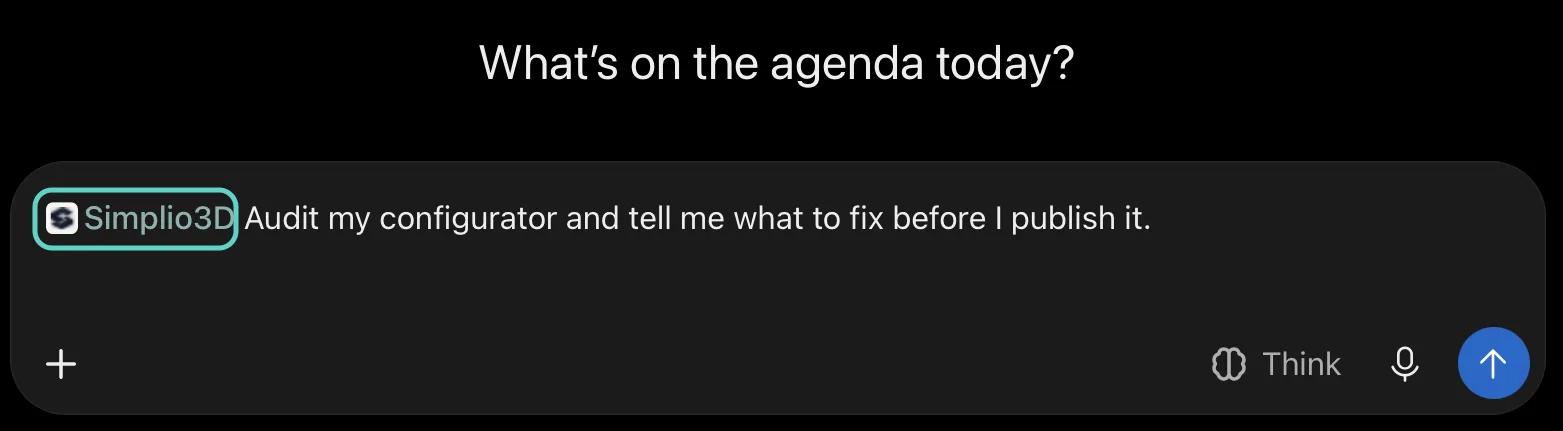
On the plugin page, click Try in chat, or one of the three suggested prompts. ChatGPT opens a new chat with Simplio3D attached to your message, shown as a Simplio3D tag at the start of the box. The first suggestion is a good test of the connection: “Audit my configurator and tell me what to fix before I publish it.”
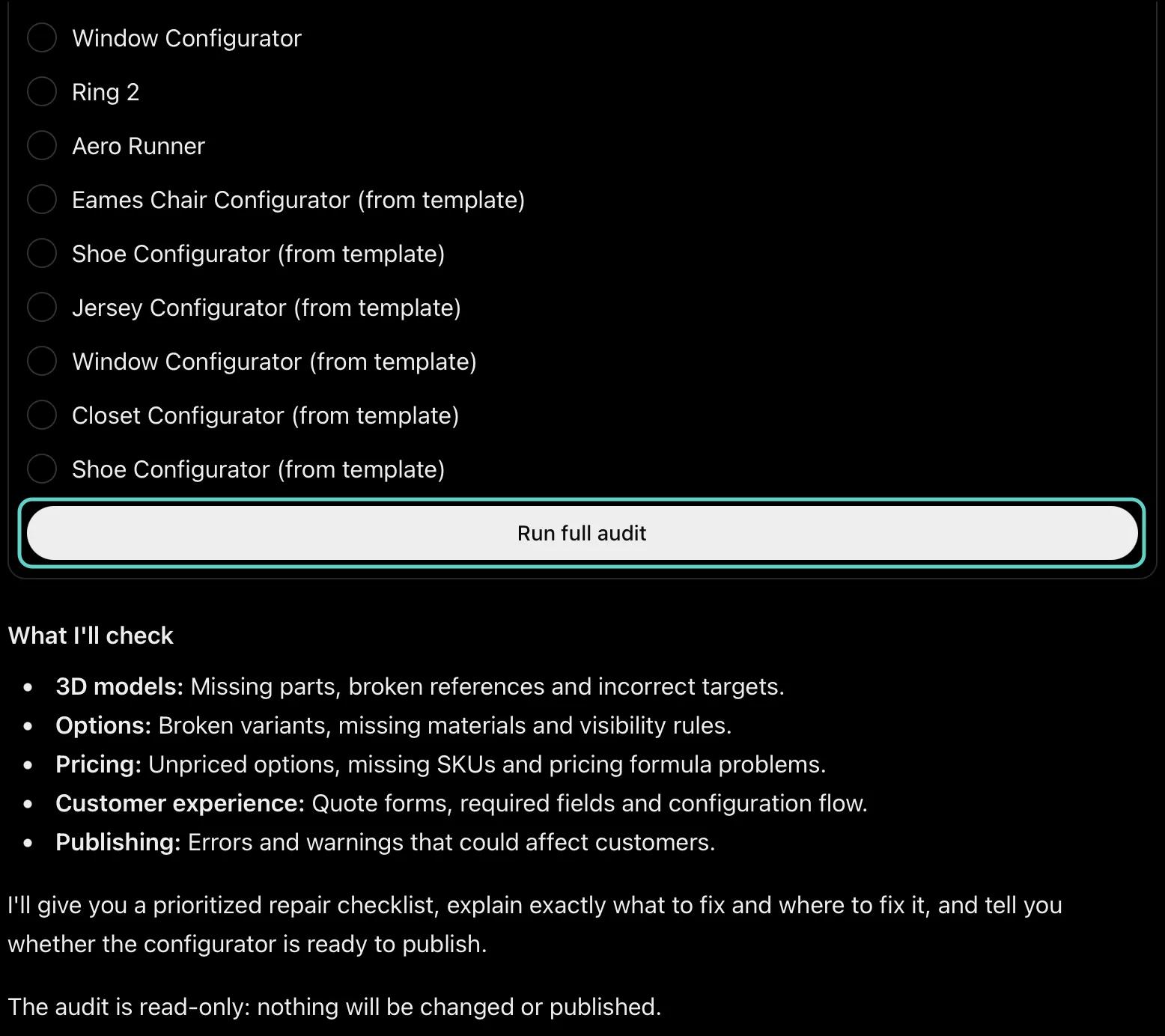
ChatGPT lists the projects in the workspace you connected and asks which one to audit. Pick one and choose Run full audit. The audit opens the 3D model files and checks every part your options and rules point at, then the options, rules and materials, the pricing and SKUs, the quote form and anything that would stop the project working for customers. Findings come back grouped by area: what is wrong in plain words, where it is in the editor, how to fix it, and which fixes are safe clean-ups and which are decisions for you. At the end, ChatGPT tells you whether the configurator is ready to publish.
The audit only reads, so nothing is changed or published. If you granted write access, ask ChatGPT to make a fix and it can carry it out in the same chat. The other two suggestions show the rest of the read side: “Explain how my configurator is priced and what a configuration costs” walks through the pricing blocks and calculates a price, and “How do I set up conditional logic to show or hide options?” answers from the Simplio3D documentation, with a link to the page.
Build and manage configurators from ChatGPT
With write access granted, ChatGPT works through the same Simplio3D tools as the dashboard’s AI features, so everything it creates is a normal project you can open and edit in the editor. There are four ways to start a new configurator:
- A template. Ask which templates exist: the catalogue includes cabinet, closet, Eames chair, jersey, shoe, wedding ring and window configurators. ChatGPT copies the one you choose into a new, unpublished project, with its scene, options, pricing and form.
- A model you already have. Name a model in Dashboard → Assets and the finishes customers should choose from. ChatGPT creates the project, works out which parts take the material, and adds the finish option.
- A short brief. Describe the product. The build-from-a-brief workflow creates the project with up to four of your models, finishes, further options, show and hide rules and a quote form, plus a base price that waits for your approval.
- The curated library. No model yet? Ask ChatGPT to find one in Simplio3D’s curated library and import it.
Managing works the same way: rename, reorder or extend options, add rules and form fields, and ask what the AI has changed so far.
| Ask ChatGPT | What you get | Access it needs |
|---|---|---|
| “Which Simplio3D templates can I start from?” | The current template catalogue, with each template’s category and project type | Read (ticked for you) |
| “Create a configurator from the Closet template and call it Walnut Wardrobe.” | A new, unpublished project with the template’s scene, options, pricing and form | Projects (write) |
| “Add a Handles option to Walnut Wardrobe with Brass, Black and Chrome.” | A new option block with three variants | Configurator (write), and Materials to create or assign the finishes |
| “Only show the Mirror option when Sliding doors is selected.” | A show/hide rule you can open and edit like any other | Configurator (write) |
| “Add Company and Phone fields to the quote form.” | Two new form fields | Forms (write) |
| “Set the base price of Walnut Wardrobe to 1,450.” | A proposal you approve or dismiss under AI Changes in Simplio3D | Pricing (write) |
| “What did you change in Walnut Wardrobe today?” | The AI change history: what was applied, proposed or undone, and what can still be undone | Read (ticked for you) |
| “Is Walnut Wardrobe ready to publish?” | A ready or not-ready verdict and a to-do list. Publishing stays with you | Read (ticked for you) |
Name the project in each request, and ask for the evidence when it matters, such as which rule hides an option or which parts a material lands on. ChatGPT reads your saved project, so an edit you made in the editor a moment ago shows once it has saved.
What stays in your hands
Write access lets ChatGPT build, but the decisions that affect customers stay with you:
- ChatGPT asks first. Simplio3D marks every tool that changes or removes something, and ChatGPT asks you before it runs one.
- Prices, SKUs, deletions, bulk edits and store links are only proposals. Each waits in the Simplio3D dashboard under AI Changes until you approve or dismiss it. ChatGPT has no way to approve a change.
- Most changes can be undone for seven days from the same page. Imports, duplicates and projects created from a template keep no undo snapshot: delete them if you don’t want them.
- Publishing is yours. ChatGPT can’t publish a project, create a share link, change embed settings or delete a project.
- Files, stores and customers are out of reach. It can’t upload files, connect or disconnect a store, read store or email credentials, or email your customers.
- One workspace per connection. ChatGPT only sees the workspace you picked when you connected, with the role you hold there.
Prices are calculated on Simplio3D’s server, with any caveat passed on, and the live Preview stays the final word.
Simplio3D in ChatGPT: common questions
Yes. Simplio3D publishes it in ChatGPT’s Plugins directory, where it is listed as developed by Simplio3D. It connects to Simplio3D’s own server, and you sign in on Simplio3D’s own page, which names ChatGPT as the app asking to connect.
Starter, Pro and Enterprise, and the 30-day trial, on an account with a confirmed email address. On Starter, ChatGPT follows the dashboard’s plan rules, so it can’t create Modular projects or duplicate a project.
Only if you allow it. Connecting asks for read access, which is what the listing describes. Tick write access for an area on the Simplio3D approval page and ChatGPT can build and change projects there, asking you before it changes or removes anything.
No. It can’t publish, share or delete a project. Price, SKU and formula changes, deletions, bulk edits and store links only become proposals, which you approve or dismiss under AI Changes in the Simplio3D dashboard.
Disconnect Simplio3D in ChatGPT’s settings and revoke the connection under Dashboard → Integrations → AI Connections: disconnecting in ChatGPT alone doesn’t revoke it in Simplio3D. To change the access, connect again from the plugin page and tick the boxes you want. In a team workspace, a Viewer seat can only read.
No. You sign in to Simplio3D and approve the access on Simplio3D’s own page. You never paste a key, a token or a password into ChatGPT.
Only what ChatGPT sends to a Simplio3D tool: the tool’s name and its inputs, such as a project name or a new price. Simplio3D keeps the changes made and a 30-day log of tool calls that records the names of the inputs, not their values. ChatGPT’s connect dialog explains what OpenAI shares and keeps.
Yes. The same plugin connects ChatGPT and Codex, OpenAI’s coding agent, to Simplio3D. Each app gets its own connection, which you can see and revoke separately under AI Connections.
Working in Claude too?
The Simplio3D plugin for Claude connects to the same server and adds authoring and materials skills, so Claude can build a configurator from a prompt.
Connecting Cursor or VS Code?
Every other MCP client, from Cursor to VS Code with GitHub Copilot, connects with a scoped token. The guide covers each one.
Rather build inside Simplio3D?
Generate with AI drafts a configurator from a short description on the Projects page, with no AI account of your own.
From the blog
Guides, tutorials and news from the Simplio3D team.
Simplio3D Product Configurator Plugin for WordPress
Embed a 3D product configurator on WordPress and let customers add their configured product straight to the WooCommerce basket — with the price your own rules calculated.
Zakeke Alternatives in 2026: 7 Product Configurators Compared
Looking for a Zakeke alternative? What Zakeke offers today, when it is worth staying, and seven alternatives compared on 3D, rules, stores and published prices.
How a Product Configurator Gets Built (2026 Workflow)
The decisions that determine whether a configurator project succeeds — defining the requirement, choosing the project type, building options, logic and pricing, and where AI now does the work.
Simplio3D is Included in the Gartner Innovation Insight for Visual Configuration Report
In the 2020 Innovation Insight for Visual Configuration report, Simplio3D is included for the first time in the list of visual configuration vendors as a software solution provider for product configuration.
Top 10 Best Product Configurator Software in 2026 (Pros & Cons Comparison)
A practical comparison of ten product configurator platforms — what each is genuinely built for, how they differ on visualisation, pricing logic and integration, and how to shortlist without wasting a quarter.
Build, deploy and scale 3D commerce.
Own a 3D product configurator to drive sales and generate proposals directly from your website
Related articles
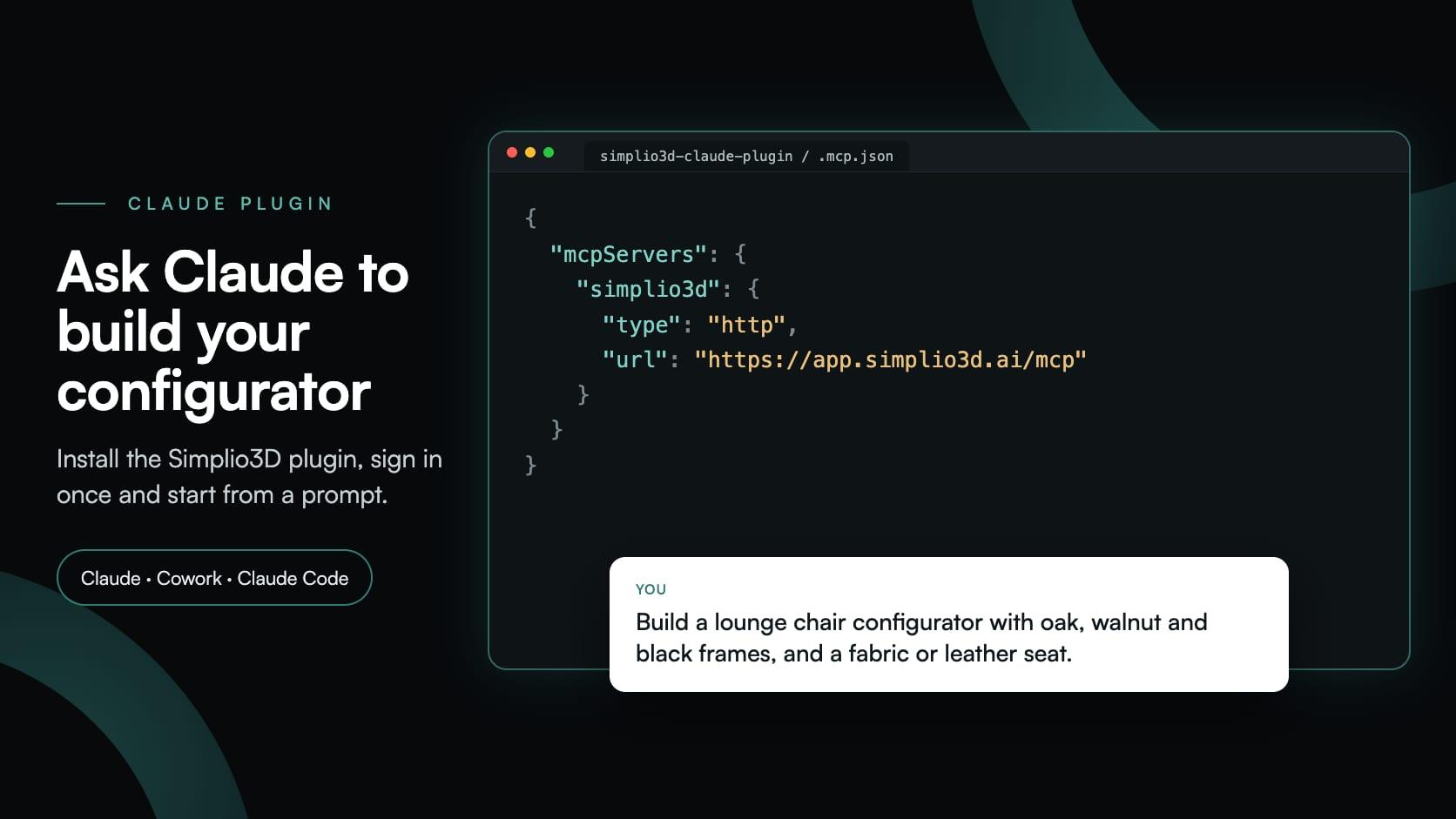
Build a Configurator with Claude: the Simplio3D Plugin Tutorial
Install the Simplio3D plugin in Claude, sign in once and build your first 3D product configurator from a prompt: setup, permissions, the first prompts, and what stays in your hands.
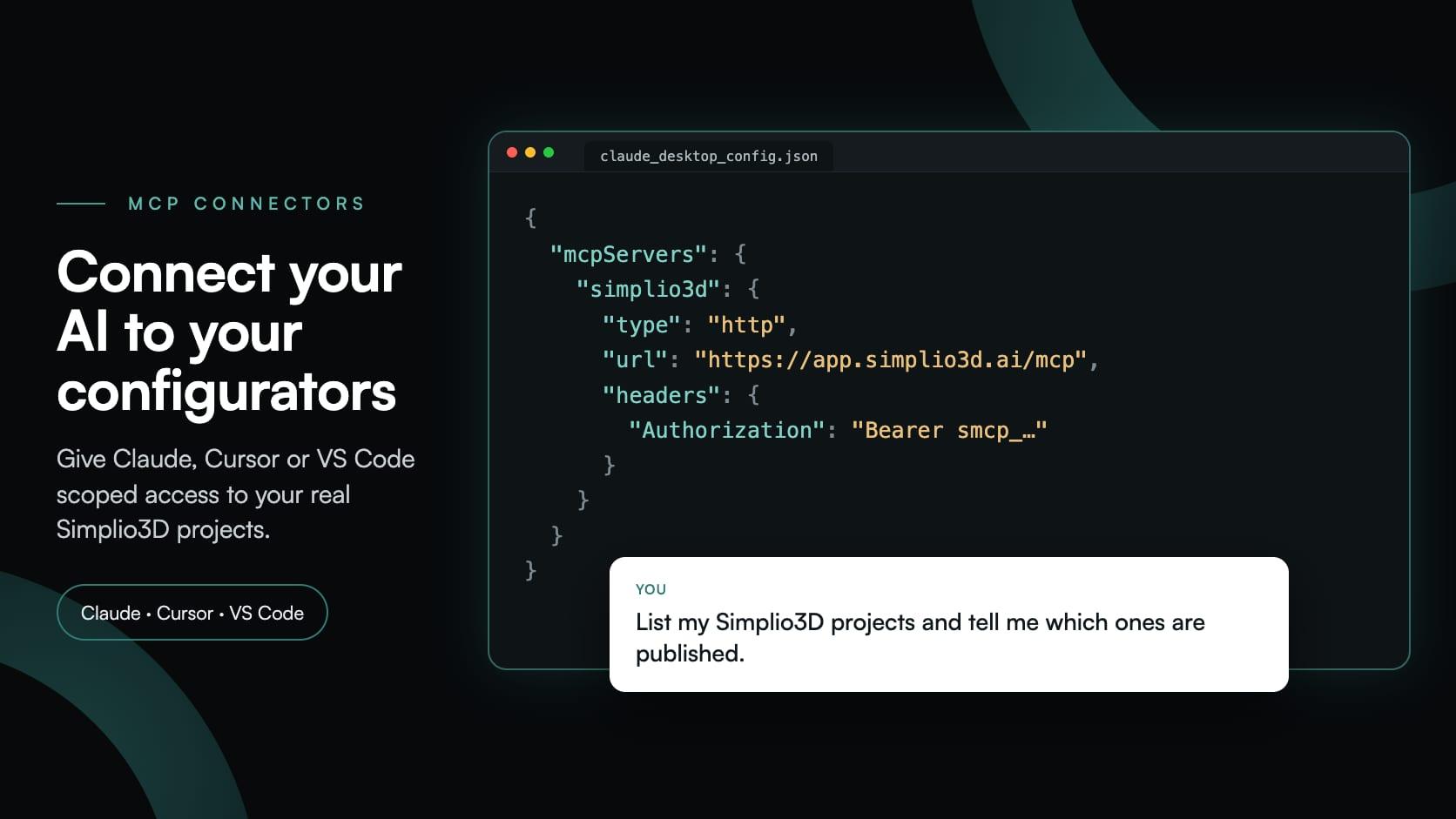
Product Configurator MCP: Connect Claude, Cursor and VS Code to Simplio3D
MCP connectors let Claude, Cursor or VS Code work with your real Simplio3D projects. What a connected agent can read and change, how approval works, and how to connect one.
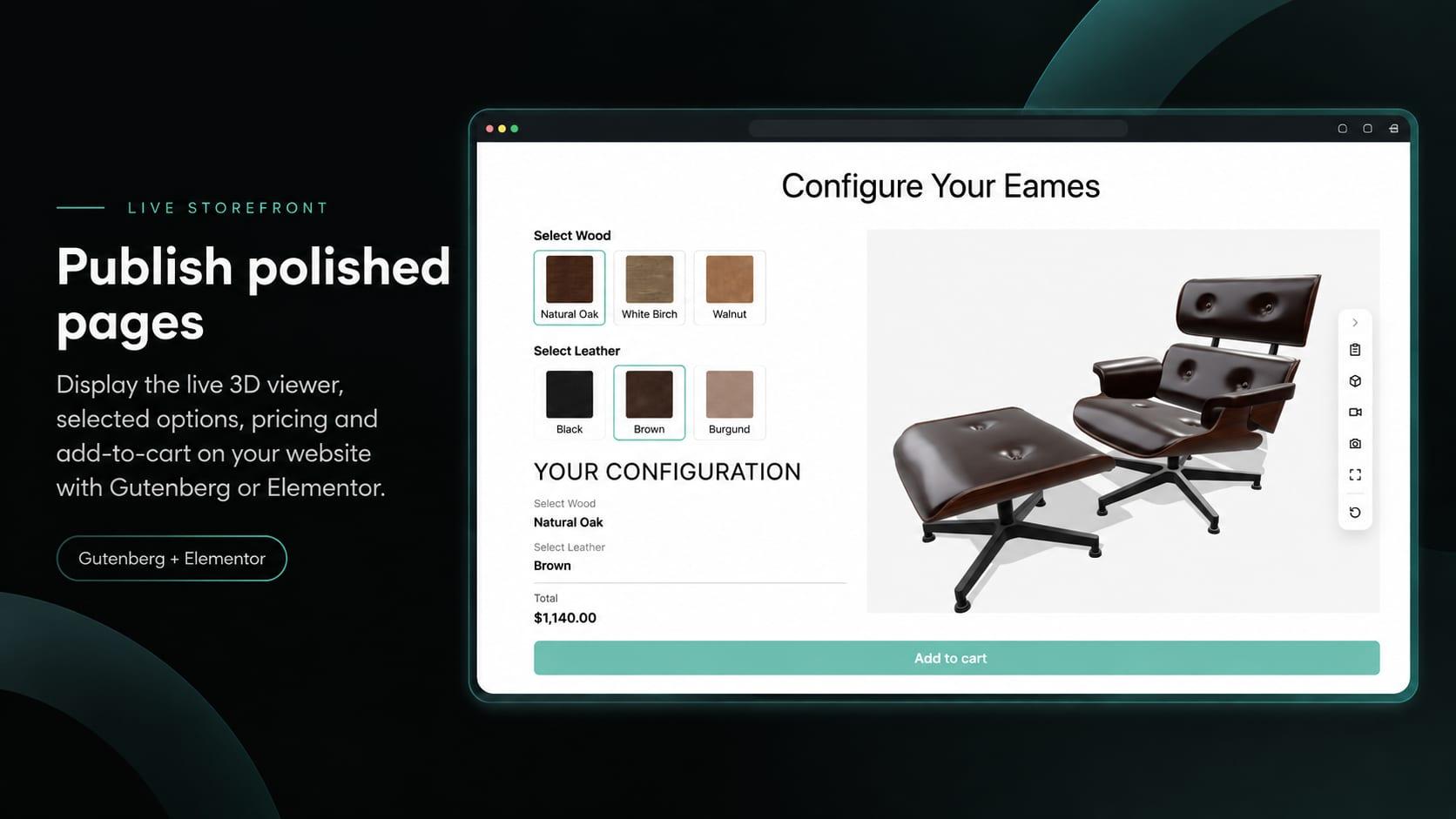
How to Use the Simplio3D WordPress Plugin in Elementor
Place the Simplio3D viewer, options, price, summary and Add to Cart in Elementor with the free Shortcode widget: find your ids, build the layout and connect WooCommerce.