

Tillbaka till bloggen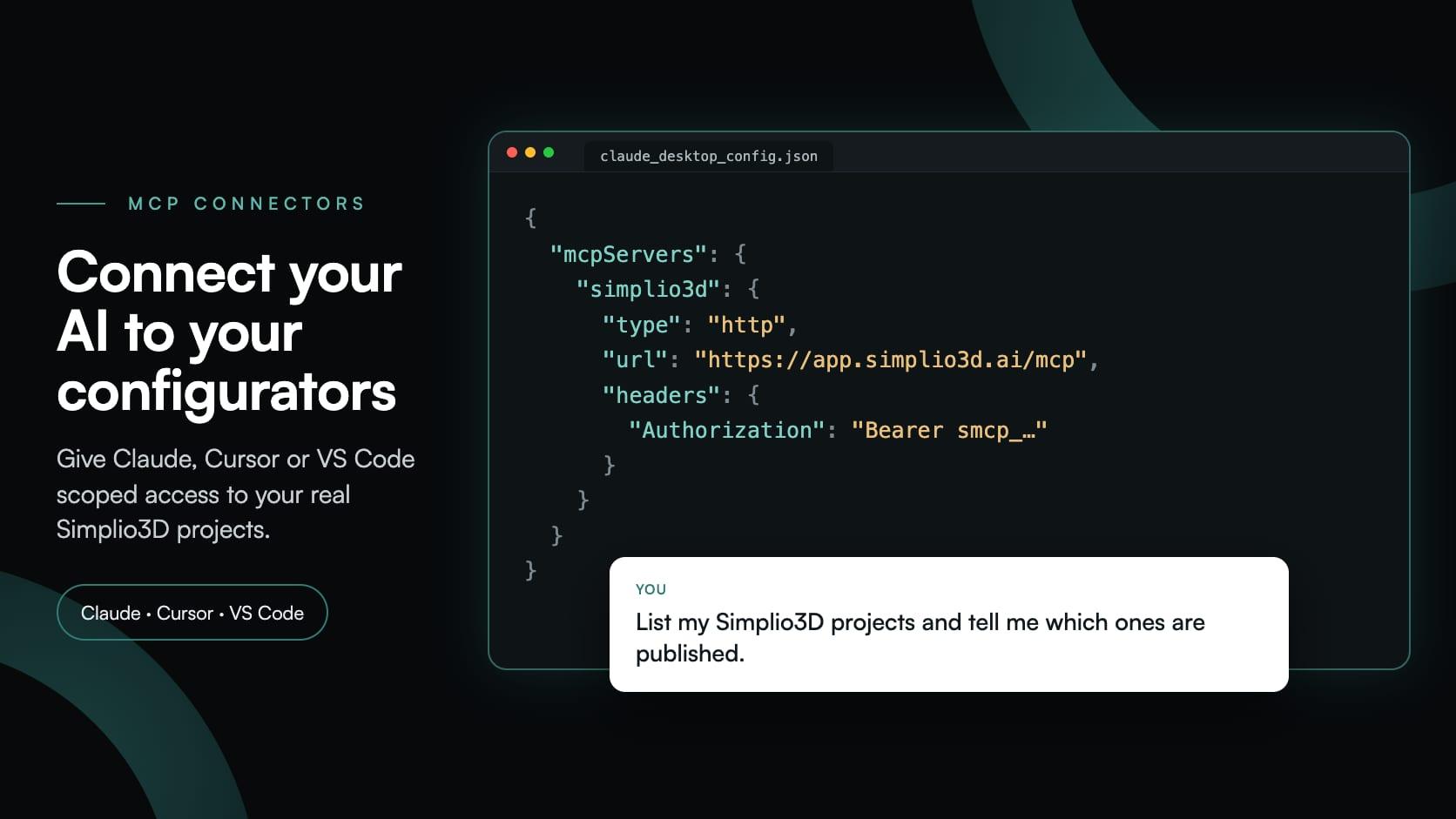
mcpaiintegrationstutorial
MCP Connectors: Connect Claude, Cursor and VS Code to Simplio3D
Simplio3D·
Ask an AI assistant about your product configurator today and it answers from whatever you paste into the chat: a screenshot, a list of options, a price you typed out. MCP connectors remove that step. A connector gives the assistant a direct, permissioned line into your Simplio3D account, so it reads the real project (the option blocks, the conditional rules, the pricing formula, the part names inside the 3D model) and answers from that.
This guide explains what an MCP connector is, what a connected agent can and cannot do in Simplio3D, how risky changes stay under your control, and how to connect Claude, Cursor or VS Code.
The Model Context Protocol (MCP) is an open standard for connecting AI assistants to outside tools and data. It has two sides. An MCP client is the AI tool you already use, such as Claude, Cursor or VS Code. An MCP server is the system the assistant connects to: it publishes a list of tools, each with a description and a schema, that the assistant can call when a question needs them.
A connector is the link between the two: the server’s address, plus a credential that says who is connecting and what they may touch. Claude calls it a custom connector; other clients call it an MCP server entry. For Simplio3D it is always the same two things:
https://app.simplio3d.ai/mcpOnce connected, the assistant sees Simplio3D’s tools alongside its own and decides when to call them from what you ask.
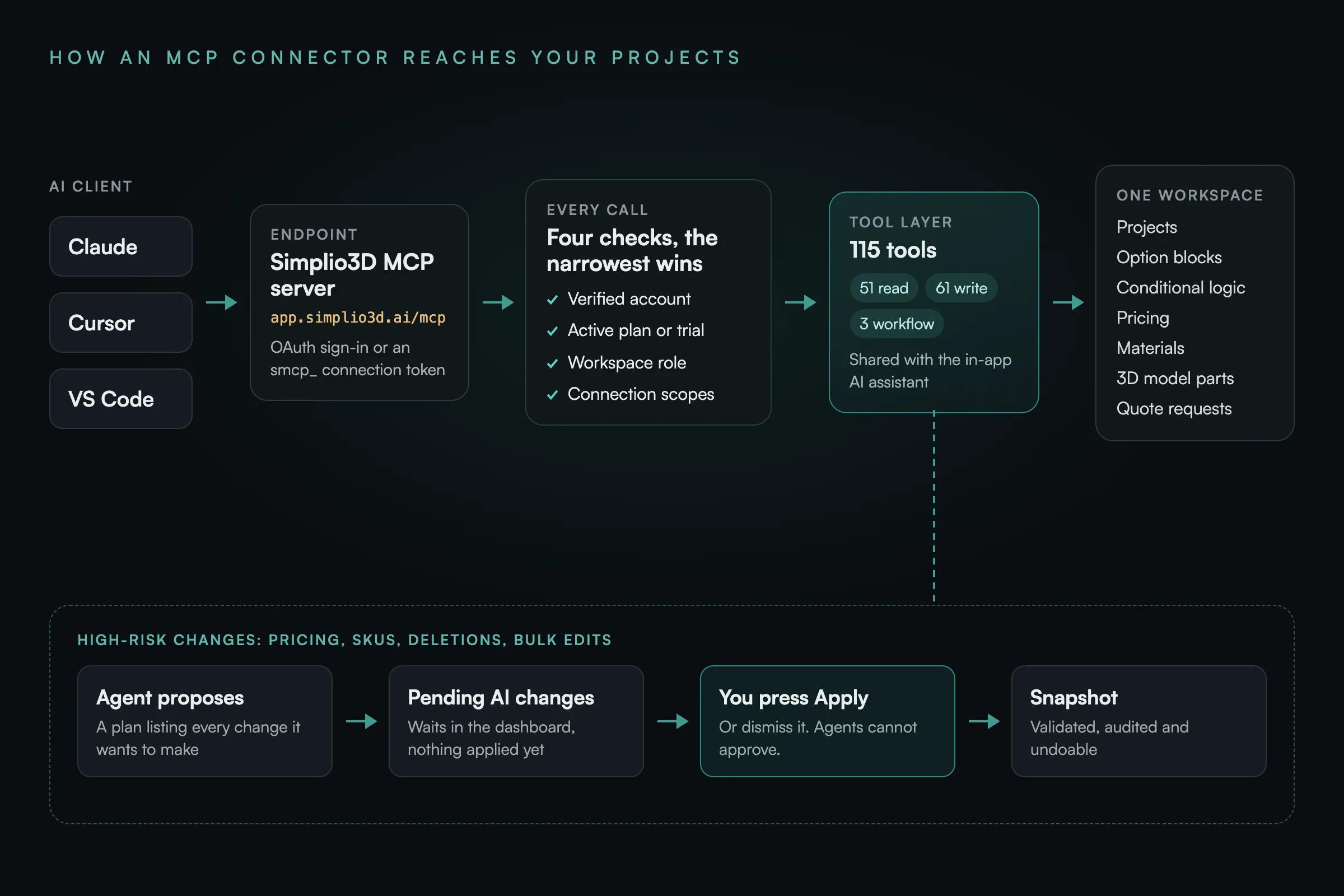
The Simplio3D MCP server exposes 115 tools: 51 that read, 61 that write under a controlled-write model, and 3 that run agent workflows. Between them they cover projects, 3D model inspection, materials, option blocks, conditional logic, pricing, forms, quote requests and store connections. In practice, a connected agent can:
Every tool, with the scope it needs and whether it reads or writes, is listed in the MCP tool reference.
Some actions stay out of reach whatever scopes you grant. A connected agent cannot publish a project, create a share link or change embed settings. It cannot upload files or delete a project. It cannot connect or disconnect a Shopify or WooCommerce store, or read that store’s credentials. And it never receives database access, API keys, webhook secrets or share-view passwords: tools return curated summaries, not raw records.
A connection can only see and call the tools its scopes cover. Start read-only and add one write scope at a time, as the job requires.
| Scope | What it allows | Grant it when the agent should |
|---|---|---|
| Workspace (read) | Your workspace, plan and usage summary | Tell you which plan you are on and how much of it you use |
| Projects (read / write) | List and inspect projects; create, rename, duplicate and change safe settings | Report on your projects, or set new ones up |
| Assets (read) | List assets and inspect a model’s part names and hierarchy | Talk about the meshes inside your models |
| Materials (read / write) | Read the library; create and edit materials and assign them to variants | Build or tidy your material library |
| Configurator (read / write) | Read and author option blocks, variants and conditional rules | Build or restructure the options shoppers see |
| Pricing (read / write) | Read prices and formulas; propose pricing, SKU and formula changes | Work on pricing. Every pricing write is a proposal you approve. |
| Forms (read / write) | Read and author quote and checkout form fields | Build or adjust your lead form |
| Quotes (read) | Submitted quote requests, including customer details | Summarise incoming leads. This is customer data, so grant it deliberately. |
| Commerce (read / write) | Whether a store is connected, its products, and proposals to link a product or set the checkout mode | Wire a project to a store product. It never grants the store’s credentials. |
| Workflows (read / write) | Follow agent workflows; start them, answer their questions, pause or cancel them | Run or monitor a longer job such as a project audit |
| Docs (read) | The official Simplio3D documentation, with no workspace data | Answer product questions with a source |
Several small connections are safer than one that can do everything. Give the assistant that reviews pricing its own connection with read scopes plus pricing write, and the one that builds projects another. Revoking one then never interrupts the other.
Letting an AI edit a live configurator only works if a bad edit cannot reach your customers. Simplio3D handles every write in three steps: propose, confirm, snapshot.
Proposals are short-lived. If the project has changed since the agent proposed something, the old proposal is refused rather than written over your newer edits; ask the agent again.
On top of that, a tool call succeeds only when four checks all pass: the account’s email address is verified, the workspace owner’s plan is active, the seat’s role allows the action, and the connection holds the scope. The narrowest one wins. A Viewer seat, for example, can never make or confirm a change, whatever scopes its connection has.
The token route works in every client. Using Claude? The OAuth route below skips the token.
In Simplio3D, go to Dashboard → Integrations → AI Connections and copy the MCP endpoint shown at the top of the page.
Click Create connection and name it after the tool that will use it, such as “Claude Desktop” or “Cursor”. A connection per tool makes it obvious which one to revoke later.
A connection is tied to the workspace you pick here, permanently. To work across two workspaces, create a connection from each.
Start read-only and add write scopes one at a time. Grant Quotes only when the agent should see customer details.
The token starts with smcp_ and is shown once, never again. Paste it into your AI tool with the endpoint, as shown in the table below. Treat it like a password: it lasts 90 days, and you can rotate or revoke it at any time.
Ask something only your account can answer: “List my Simplio3D projects and tell me which ones are published.” If the reply names your real projects, the connector works.
Connecting Claude without a token. In Claude, open Settings → Connectors → Add custom connector and paste https://app.simplio3d.ai/mcp. Claude finds Simplio3D’s sign-in on its own and opens a consent screen where you choose the workspace and the scopes. The connection then appears in the same AI Connections list, marked OAuth app, and you rotate or revoke it there like any other.
| AI client | Where to add it | What to add |
|---|---|---|
| Claude (OAuth) | Settings → Connectors → Add custom connector | The endpoint URL. No token: you approve the Simplio3D consent screen instead. |
| Claude Desktop | Settings → Developer → Edit Config (claude_desktop_config.json) | A “simplio3d” server of type http, with the endpoint URL and an Authorization: Bearer smcp_… header |
| Claude Code | Your terminal | claude mcp add --transport http simplio3d https://app.simplio3d.ai/mcp --header "Authorization: Bearer smcp_…" |
| Cursor | ~/.cursor/mcp.json, or .cursor/mcp.json for one project | A “simplio3d” server with the endpoint URL and the Authorization header |
| VS Code (GitHub Copilot) | .vscode/mcp.json | An http server with the endpoint URL, reading the token from a password prompt rather than storing it in the file |
Name the project, and ask for evidence: “which rule hides it?” gets a sharper answer than “why is it hidden?”.
| Ask | What the agent checks | What you get back |
|---|---|---|
| “Audit my Oak Dining Table configurator and list everything that is broken.” | Finds the project, then validates it, including the part names in the 3D model | Findings by severity: missing part targets, deleted materials, rules that can never fire, unpriced variants |
| “Why is the Walnut finish hidden when I pick the small top?” | The option blocks and conditional rules, then evaluates them | The rule that hides it and the condition that matched |
| “Does every variant in this configurator have a price?” | The pricing blocks, then a validation pass | The unpriced variants by name, with the pricing block each belongs to |
| “Which options target parts that no longer exist in the model?” | The targets you authored against the real geometry | The stale targets, listed |
| “What would oak in the large size cost?” | The option blocks, then a server-side price calculation | Base price, each adjustment, tax and the total in the project’s currency |
| “Summarise the quote requests we received this week.” | The quote requests and each configuration | Contact details, what each customer configured and the price at the time |
The MCP server is not a separate product bolted on. Simplio3D’s built-in AI assistant, the authenticated REST tool endpoint for your own automations, and external MCP clients all call the same tool registry, behind the same authentication, permissions and audit log. A capability behaves the same wherever you call it from, and a scope or role that blocks it in one place blocks it everywhere.
That is also how MCP differs from the REST API and SDK. The SDK is a typed client for your own code, authenticated with an API key, and that key is never accepted on the MCP endpoint. MCP is for AI agents, authenticated with a connection you scope per tool.
The workspace owner needs a Pro or Enterprise plan, or an active trial; Starter plans cannot connect. Every account starts with a 30-day Pro trial, so you can try a connector before you choose a plan.
Claude (through Settings → Connectors, the desktop app or Claude Code), Cursor, and VS Code with GitHub Copilot have step-by-step instructions in the Simplio3D docs. Any other client that supports remote MCP servers over HTTP, with OAuth or a bearer token, can use the same endpoint.
No. Publishing, share links and embed settings are out of reach entirely. Pricing, SKU and formula changes are always proposals that wait under Pending AI changes until you apply them in the dashboard.
No. It can see whether a store is connected, list its products and propose linking a product to a project. Connecting or disconnecting a store, and its credentials, stay in the dashboard.
Each connection is bound to one workspace. A project in another workspace, such as a team workspace, looks like it does not exist; that is the boundary working. Create a connection from that workspace, or ask the agent which workspace it is using.
The server-side calculation covers the common cases but not every runtime behaviour, such as per-unit Number Input pricing. The result lists what it did not evaluate. Preview and the published share view are authoritative.
Yes. Create one connection per tool, each with its own scopes. Revoking one never affects the others, and the list shows when each connection was created and last used.
How a project goes from a 3D model to options, conditional logic and pricing, before an agent ever reads it.
The price blocks and the formula editor that a connected agent reads and calculates against.
Äg en 3D-produktkonfigurator för att driva försäljning och generera förslag direkt från din webbplats.
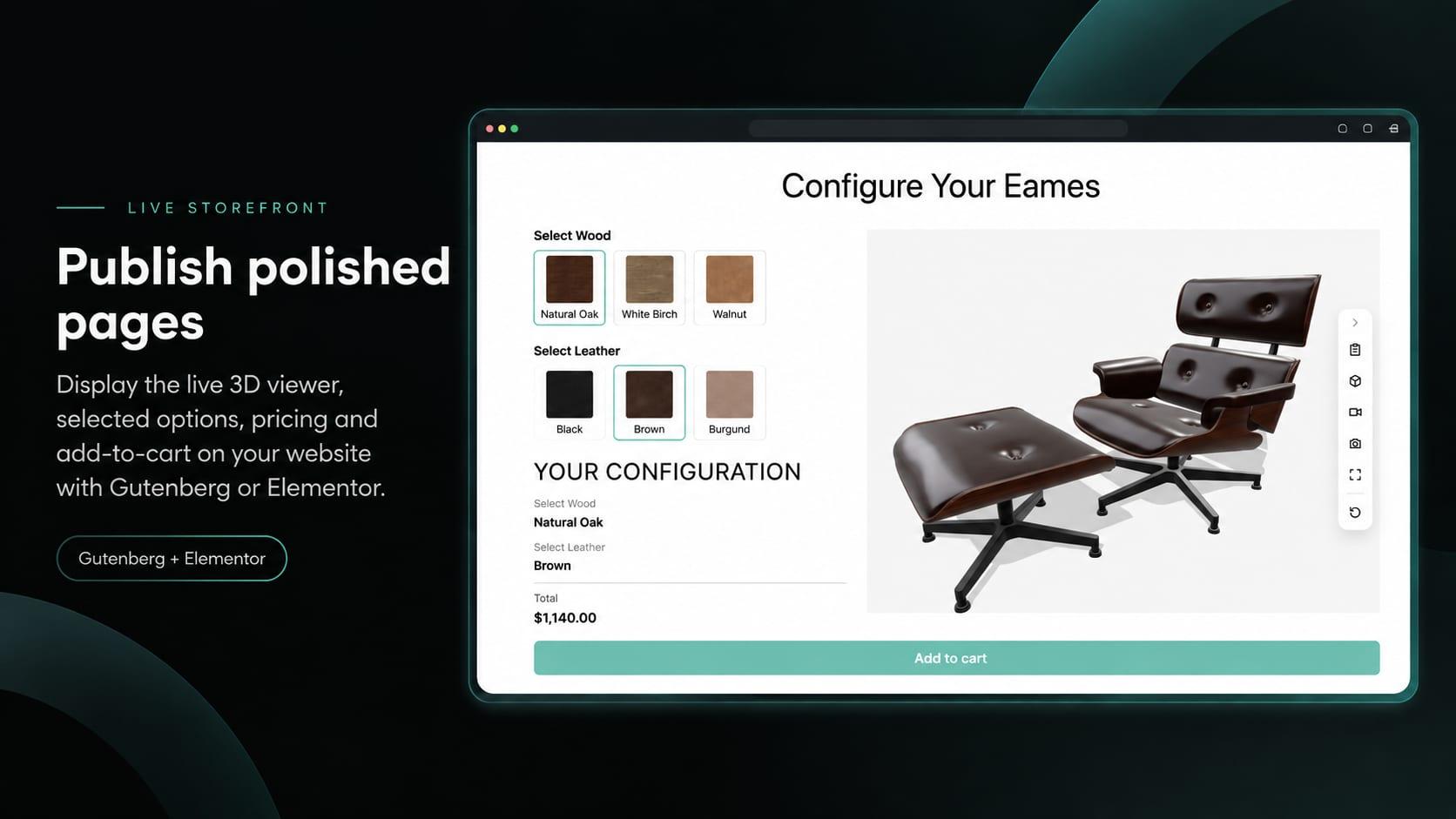
Add a Simplio3D product configurator in Elementor with the free Shortcode widget: find your ids, build the layout, connect WooCommerce and fix common issues.
De beslut som avgör om ett konfiguratorprojekt lyckas — definiera kraven, välja projekttyp, bygga alternativ, logik och prissättning, och var AI nu utför arbetet.

Bädda in en 3D produktkonfigurator på WordPress och låt kunderna lägga till sin konfigurerade produkt direkt i WooCommerce korgen — med priset beräknat enligt dina egna regler.