

Terug naar blog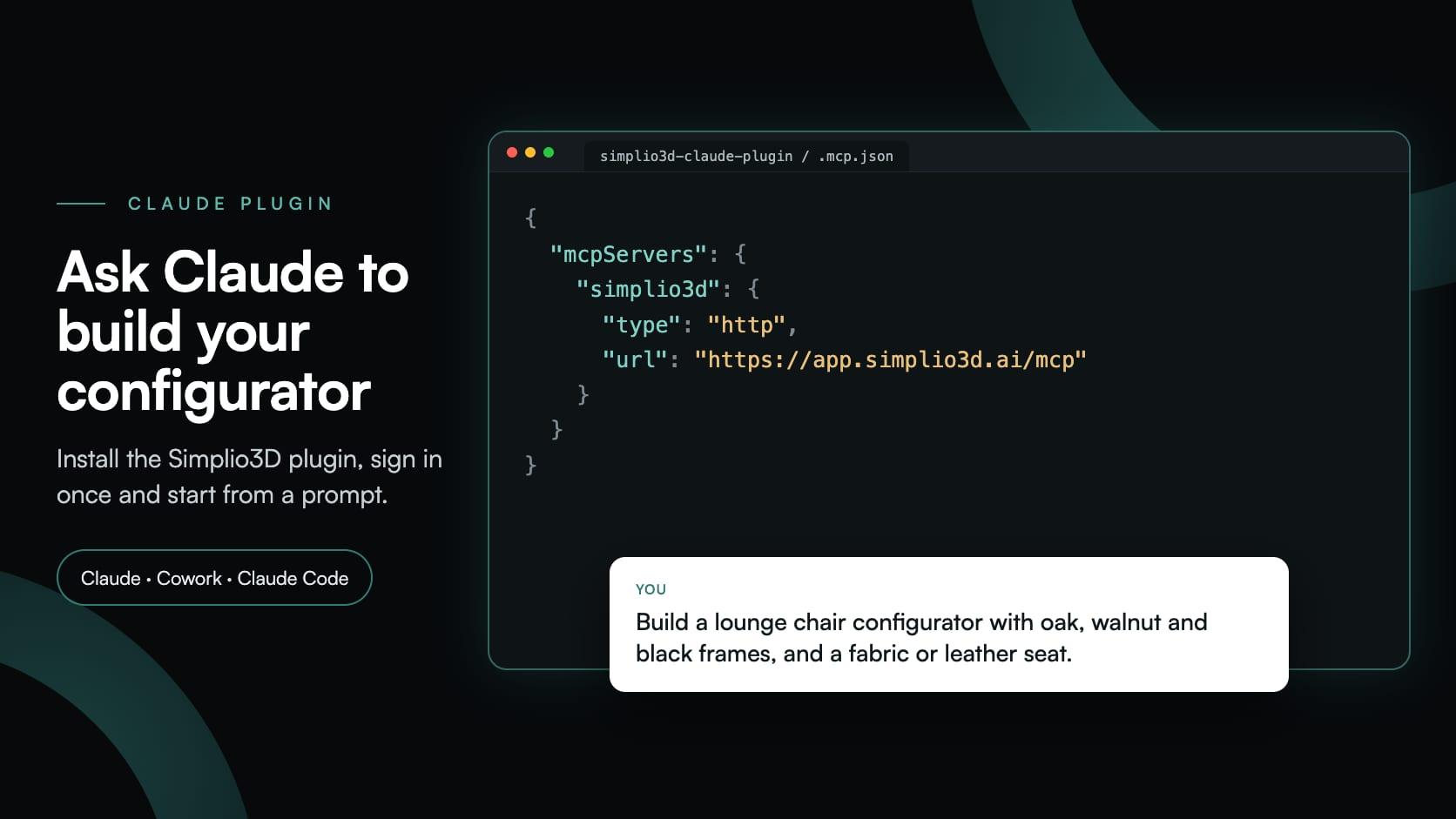
claudemcpaitutorial
Simplio3D Plugin for Claude: Build a Configurator in Minutes
Simplio3D·
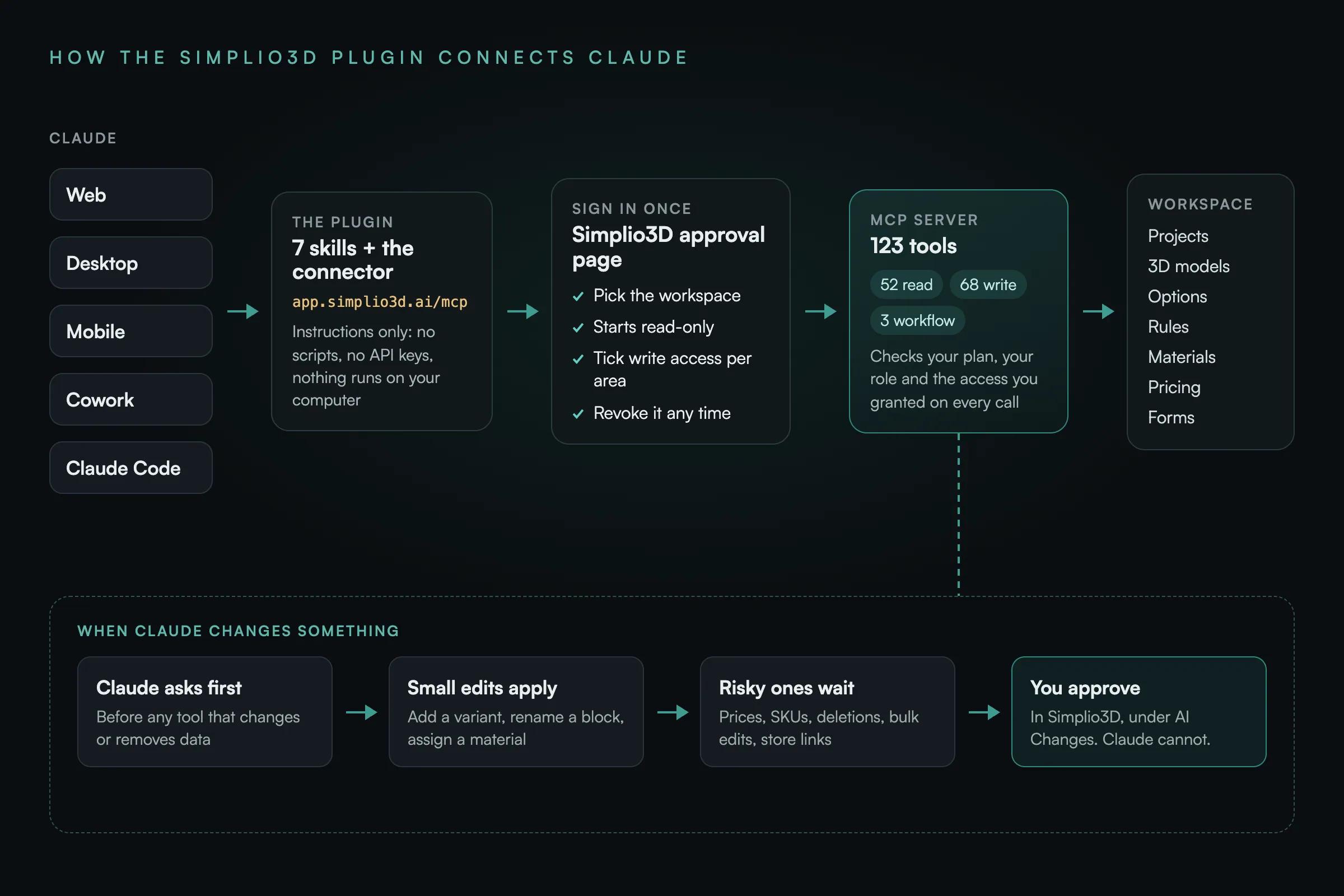
The Simplio3D plugin for Claude brings your 3D product configurators into the conversation. Install it, sign in to Simplio3D once, and Claude can read your real projects, build a new configurator from a couple of sentences, add options and rules, and tell you what is broken before a customer finds it. You don’t paste screenshots, copy tokens or learn tool names.
This tutorial covers the whole path: what the plugin contains, how to install it in Claude or Claude Code, what access to grant, the prompts that get a first draft built in minutes, and the parts that deliberately stay with you.
A Claude plugin bundles instructions and connections into one install. Simplio3D publishes its plugin in Claude’s plugin directory, and the source is open on GitHub under the MIT licence. It holds two things:
https://app.simplio3d.ai/mcp. MCP, the Model Context Protocol, is the open standard that lets Claude call outside tools. It is the same connector Claude’s directory lists as Simplio3D, so if you have already connected that, the plugin uses the same connection.Behind the connector are 123 tools: 52 that read, 68 that write and 3 that run multi-step workflows. They cover projects, 3D model structure, materials, option blocks, conditional rules, pricing, forms, quote requests and store connections.
Nothing runs on your computer. The plugin has no scripts, hooks or local servers, and it contains no API keys or passwords. Every permission is checked on Simplio3D’s server, so editing the skills cannot widen what Claude is allowed to do.
| Skill | What it does | For example |
|---|---|---|
| Workspace navigation | Finds projects, options, materials and 3D models by the names you use, and explains connection, permission and plan messages | “Show me my Simplio3D projects.” |
| Configurator audit | Checks a project’s 3D targets, options, rules, materials, pricing, SKUs and forms, with a plain fix for each finding | “Audit my closet configurator and tell me what’s broken.” |
| Configurator authoring | Adds and edits option blocks, variants, conditional rules, 3D part visibility, number inputs that resize the model, and modular modules | “Only show the Footrest option when the Deluxe frame is selected.” |
| Pricing and CPQ | Explains pricing blocks and formulas, calculates prices on Simplio3D’s server, finds missing SKUs and proposes price or SKU changes for your approval | “What does the chair cost in Walnut with armrests?” |
| Materials | Finds and reuses library materials, imports curated or free ones, creates new materials and assigns them to the right parts | “Add Oak, Walnut and Black as upholstery options.” |
| Publish readiness | Gives a Ready, Ready with warnings or Not ready verdict with a to-do list. It never publishes. | “Is the jersey configurator ready to publish?” |
| Simplio3D help | Answers product questions from the official Simplio3D documentation and links the page it used | “How do I embed a configurator on my Shopify store?” |
In Claude on the web, desktop, mobile or Cowork. The Claude Code commands are in the table below.
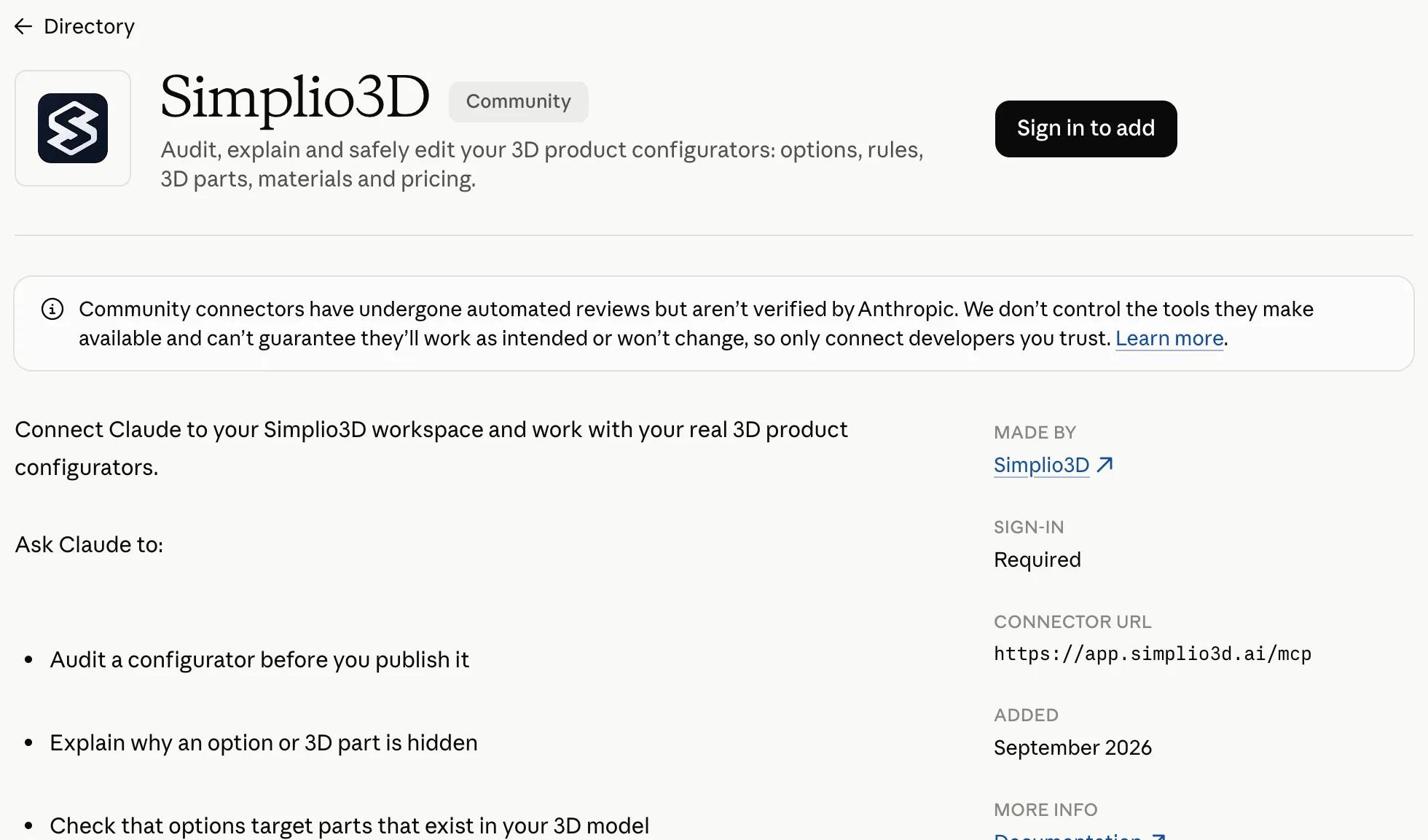
In Claude, open Customize → Plugins, search for Simplio3D and install the plugin published by Simplio3D.
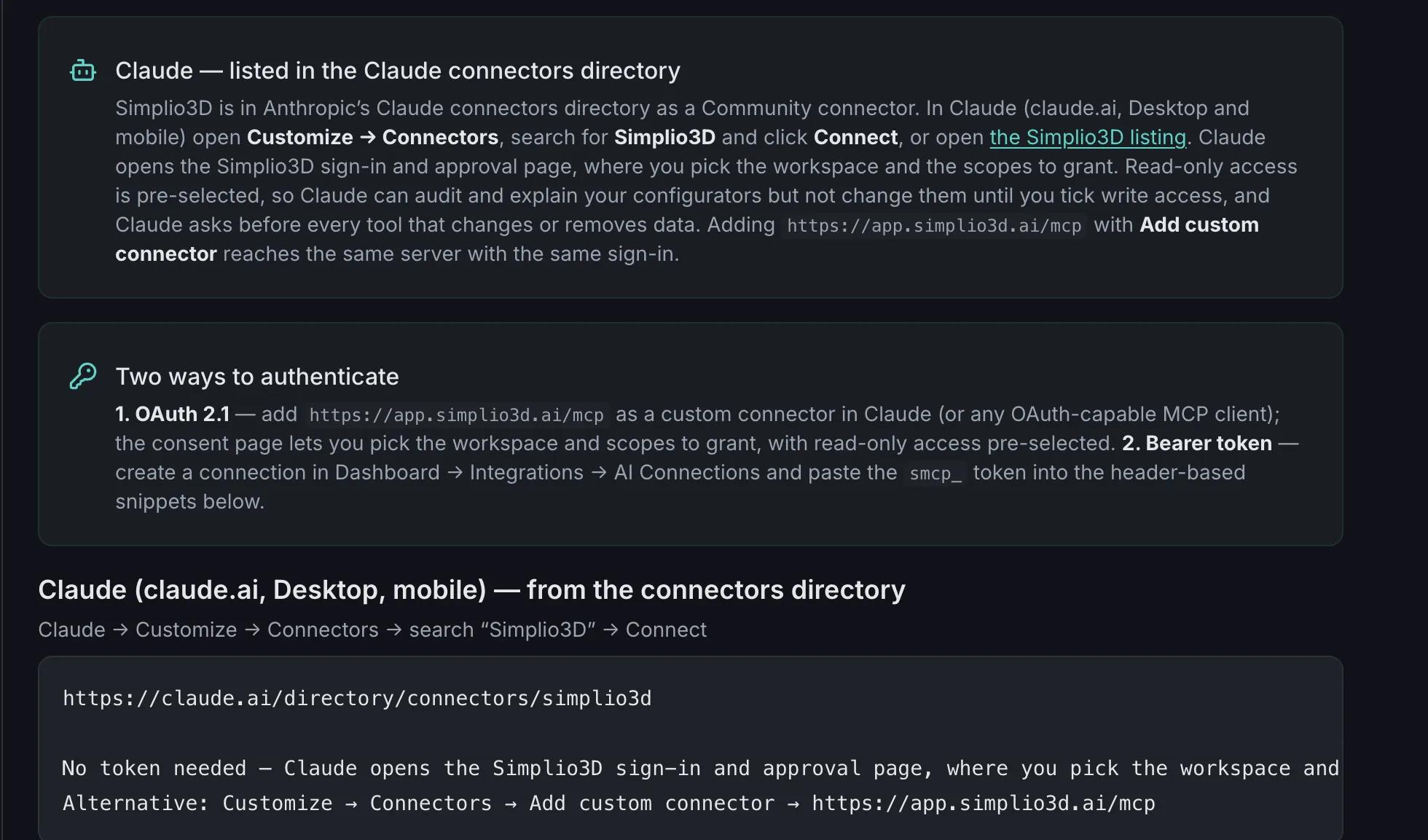
Open the plugin’s Connectors tab and connect Simplio3D. If you added the Simplio3D connector from Claude’s directory before, the plugin reuses that connection and you can go straight to the last step.
A Simplio3D sign-in page opens. Sign in with your Simplio3D account there: you never type a password, an API key or a token into the chat.
On the Simplio3D approval page, pick the workspace Claude should work in. Read-only access is ticked for you. To let Claude build, also tick the write access described in the next section, then click Authorize.
Back in Claude, ask “Show me my Simplio3D projects.” If the reply names your workspace and your real projects, you are connected.
Using Claude Code? The plugin installs from its own marketplace in two terminal commands. Then you sign in once from inside a session, on the same Simplio3D approval page.
| Step | Where | What to run |
|---|---|---|
| Add the marketplace | Your terminal | claude plugin marketplace add digitalartflow/simplio3d-claude-plugin |
| Install the plugin | Your terminal | claude plugin install simplio3d@simplio3d |
| Sign in | A Claude Code session | Run /mcp, select simplio3d and choose Authenticate |
Sign-in asks for read-only access by default. That is enough for audits, explanations, price checks and documentation questions. To build, tick write access one area at a time on the Simplio3D approval page. You can see and revoke the connection under Dashboard → Integrations → AI Connections. To grant more later, disconnect, connect again and tick the extra access.
Whatever you tick, every call is checked on Simplio3D’s server against four things, and the narrowest one wins: a confirmed email address, the workspace owner’s plan, your role in the workspace, and the access you granted.
| Area | Read (the default) | Write (if you tick it) | Tick write to |
|---|---|---|---|
| Projects | Projects, settings, 3D structure, health and sharing status | Create, rename and duplicate projects, change their settings, import library models | Let Claude create a configurator |
| Materials | The material library and its categories | Create, import and assign materials | Add finishes, fabrics and colours |
| Configurator | Option blocks, variants, rules and animations | Create and edit options, variants, rules and modules | Build the options customers choose from |
| Forms | Quote and checkout form fields | Create and edit form fields | Add a quote form |
| Pricing | Pricing blocks and formulas, price calculations | Propose price, SKU and formula changes, each approved by you | Set a base price or price the options |
| Workflows | Progress of multi-step AI jobs | Start, answer, pause or cancel them | Build a configurator from a brief |
| Store | Off unless you grant it: whether a store is connected, and its products | Propose a product link or checkout mode, approved by you | Link the configurator to a Shopify or WooCommerce product |
| Quote requests | Off unless you grant it: customer leads and email activity | None | Nothing: leave it off unless Claude should read your leads |
| Workspace, 3D assets, documentation | Your plan and seats, the asset library and model structure, the official docs | None | Nothing: these are always read-only |
For a first build, tick Projects, Materials, Configurator and Forms. Add Pricing if Claude should propose a price, and Workflows to use the build-from-a-brief workflow below. Leave Quote requests off unless you want Claude to summarise leads: anything Claude reads becomes part of your Claude conversation, and quote requests hold your customers’ names and contact details.
With write access granted, a first draft takes one prompt. There are three ways in, depending on what you already have:
No model yet? Ask Claude to search Simplio3D’s curated library. It holds ready-to-use models, from chairs and sofas to rings and a jersey, which Claude can import into your workspace so you can try a build before your own files are ready.
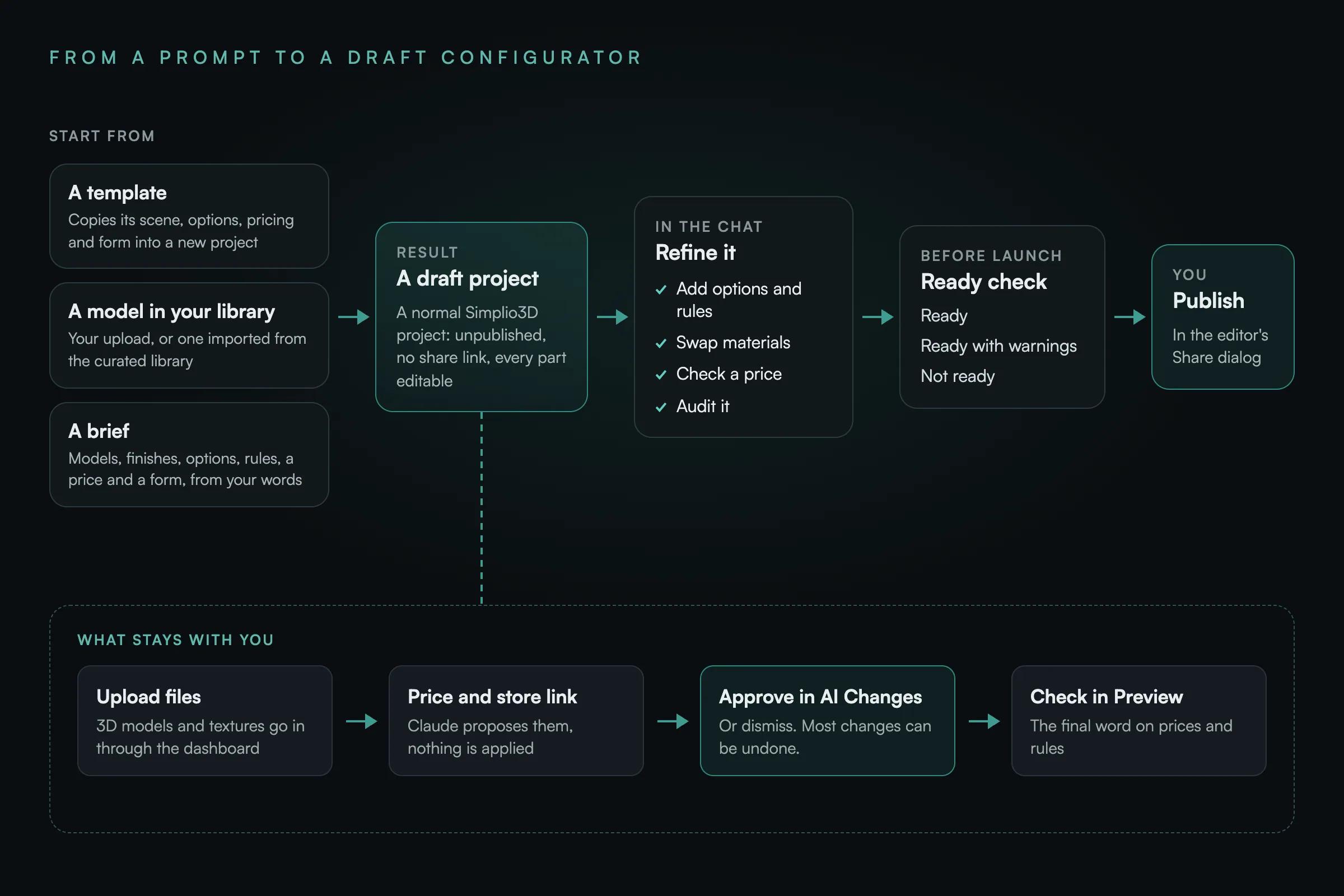
| Ask | What Claude does | What you get |
|---|---|---|
| “Which Simplio3D templates can I start from?” | Lists the template catalogue with each template’s category and project type | Real templates to choose from. Claude never invents one. |
| “Create a configurator from the Closet Configurator template and call it Oak Wardrobe.” | Copies the template into a new project | A new, unpublished project with the template’s scene, options, pricing and form |
| “Build a lounge chair configurator with oak, walnut and black frames, and a fabric or leather seat.” | Plans the build from your brief and the models in your library, and asks when something is unclear | A draft with the material and seat options, and a base price waiting for your approval |
| “Find a sofa in the Simplio3D library and add it to my Showroom project.” | Searches the curated library, imports the model and adds it to the scene | The model in your project, centred and grounded as if you had added it from Assets |
| “Add a Size option with Small, Medium and Large, and only show the Footrest when Large is selected.” | Creates the option block and the conditional rule | Both, editable in the editor like anything you built by hand |
| “Audit the Oak Wardrobe configurator and tell me what needs fixing.” | Validates the project, including the part names inside the 3D model | Findings by severity, each with a plain fix |
| “Is Oak Wardrobe ready to publish?” | Validates models, options, pricing, SKUs and forms in depth | Ready, Ready with warnings or Not ready, with a to-do list |
Write the brief the way you would explain the product to a new colleague: what it is, what customers choose, which choices depend on others, and whether it sells through a quote form or a store. In follow-ups, name the project, and ask for evidence (“which rule hides it?”) rather than a yes or no.
The draft is a normal Simplio3D project. Nothing in it is locked or AI-only: open it in the editor and rename, retarget, reprice or delete anything, or keep going in Claude. Five things make the second round safe:
When it looks right, ask whether it is ready to publish. The check returns Ready, Ready with warnings or Not ready, with a to-do list. Then you publish it yourself from the editor’s Share dialog, and embed it on your website or link it to your store as usual.
Some things Claude cannot do at all, by design:
Two more things to know. Claude reads saved data, so an edit you made in the editor a moment ago may not be visible until it has saved. And for modular configurators, snap connections are authored once you tell Claude which faces connect: it won’t guess them from the shapes.
All of them: Starter, Pro and Enterprise, and the 30-day Pro trial. AI connections have been included on Starter since September 2026. On Starter, Claude follows the same rules as the dashboard, so it cannot create Modular projects or duplicate a project.
The connector is the link to Simplio3D’s MCP server and its tools. The plugin packages that same connector with seven skills that teach Claude to use the tools well: checking the real model before naming parts, passing on price caveats and treating price changes as proposals. If you already added the connector, the plugin uses the same connection.
No. You sign in on app.simplio3d.ai and approve the access on Simplio3D’s own page. The plugin contains no keys, and you never paste a token into Claude. Tools that ask for a token, such as Cursor, use a connection token from Dashboard → Integrations → AI Connections instead.
It cannot publish at all. Price, SKU and formula changes, deletions, bulk edits and store links only ever become proposals, which you approve or dismiss in the Simplio3D dashboard under AI Changes.
The connection was approved read-only, which is the default. Disconnect, connect again and tick the write access you want on the Simplio3D approval page. In a team workspace, a Viewer seat can only read, whatever it approves.
The connection is bound to the workspace you picked when you signed in, and a project in another workspace, such as a team workspace, reads as not found. Ask Claude which workspace it is using, or connect again and pick the other one.
Yes, with a separate connection per tool. Cursor, VS Code with GitHub Copilot and other MCP clients connect to the same server, usually with a connection token you create under Dashboard → Integrations → AI Connections. Revoking one connection never interrupts the others.
Only what Claude sends to a Simplio3D tool: the tool’s name and its arguments, such as a project ID or a new price. Nothing else from the conversation is sent. Simplio3D keeps the changes you make, as it does in the app, and a 30-day log of tool calls that records argument names but not their values.
Scopes, connection tokens and the setup for each MCP client, plus the limits worth knowing before you rely on an agent.
Option blocks, conditional logic, pricing and AR: the platform Claude builds on.
Handleidingen, tutorials en nieuws van het Simplio3D-team.
Structuur, UV-mapping, optimalisatie en pivots — de vier dingen die bepalen of een 3D-model een werkende configurator wordt of een probleemoplossing.
Een praktische vergelijking van tien product configurator platforms — waarvoor elk daadwerkelijk is gebouwd, hoe ze verschillen in visualisatie, prijslogica en integratie, en hoe je een shortlist kunt maken zonder tijd te verspillen.
We zijn trots aan te kondigen dat Simplio3D is erkend door G2, het toonaangevende platform voor softwarebeoordelingen, en zowel de High Performer-badge als de Easiest Admin-badge heeft verdiend in de G2 Grid.
Integreer een 3D productconfigurator op WordPress en laat klanten hun geconfigureerde product direct aan de WooCommerce winkelmand toevoegen — met de prijs die volgens jouw regels is berekend.
In het rapport 2020 Innovation Insight for Visual Configuration is Simplio3D voor het eerst opgenomen in de lijst van leveranciers van visuele configuratie als softwareoplossing voor productconfiguratie.
Bezit een 3D-productconfigurator om verkopen te stimuleren en direct vanuit uw website offertes te genereren
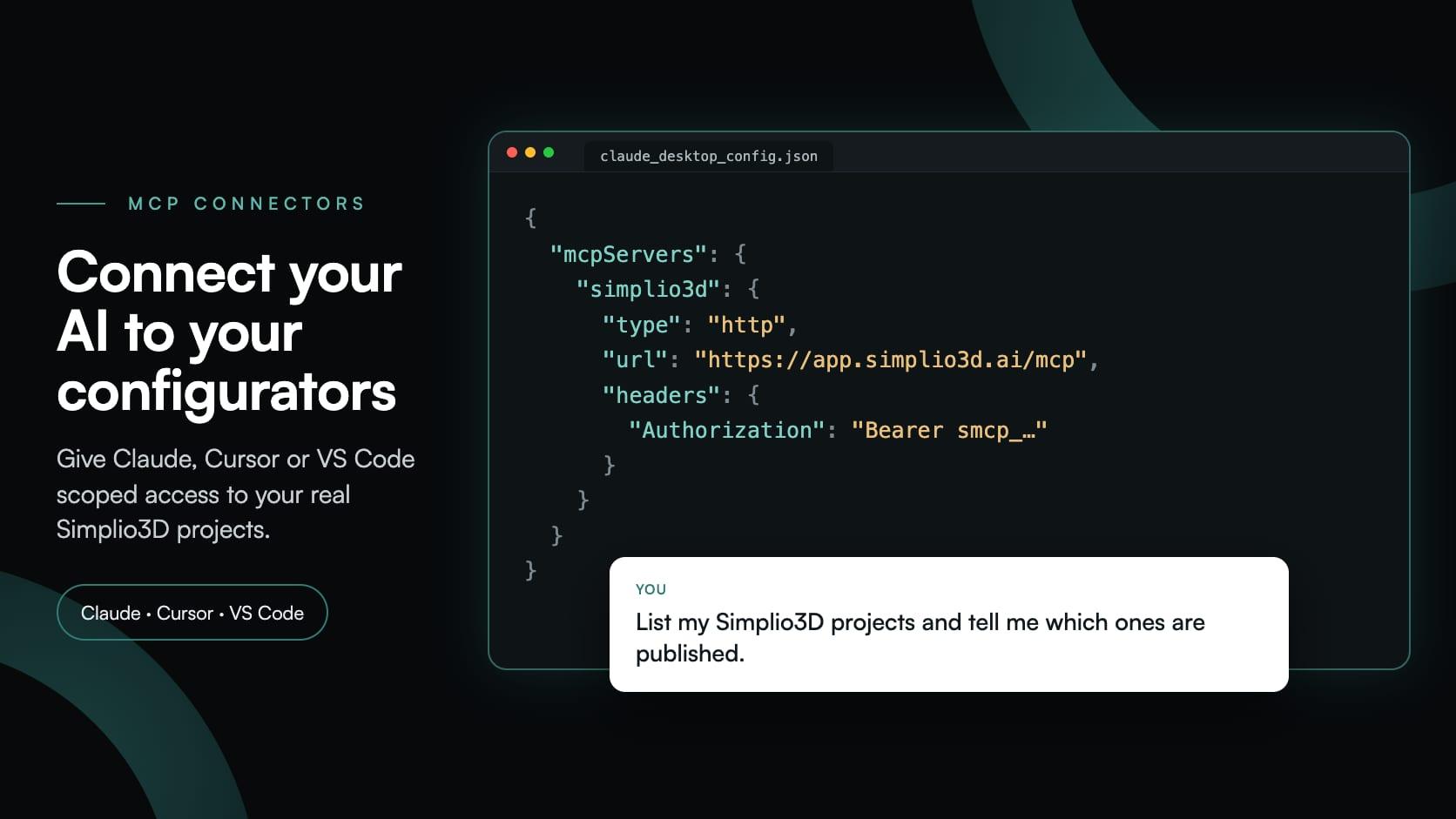
Met MCP-connectors kunnen Claude, Cursor of VS Code werken met je echte Simplio3D-projecten. Lees welke gegevens een verbonden agent kan inzien en wijzigen, hoe goedkeuring werkt en hoe je er een verbindt.
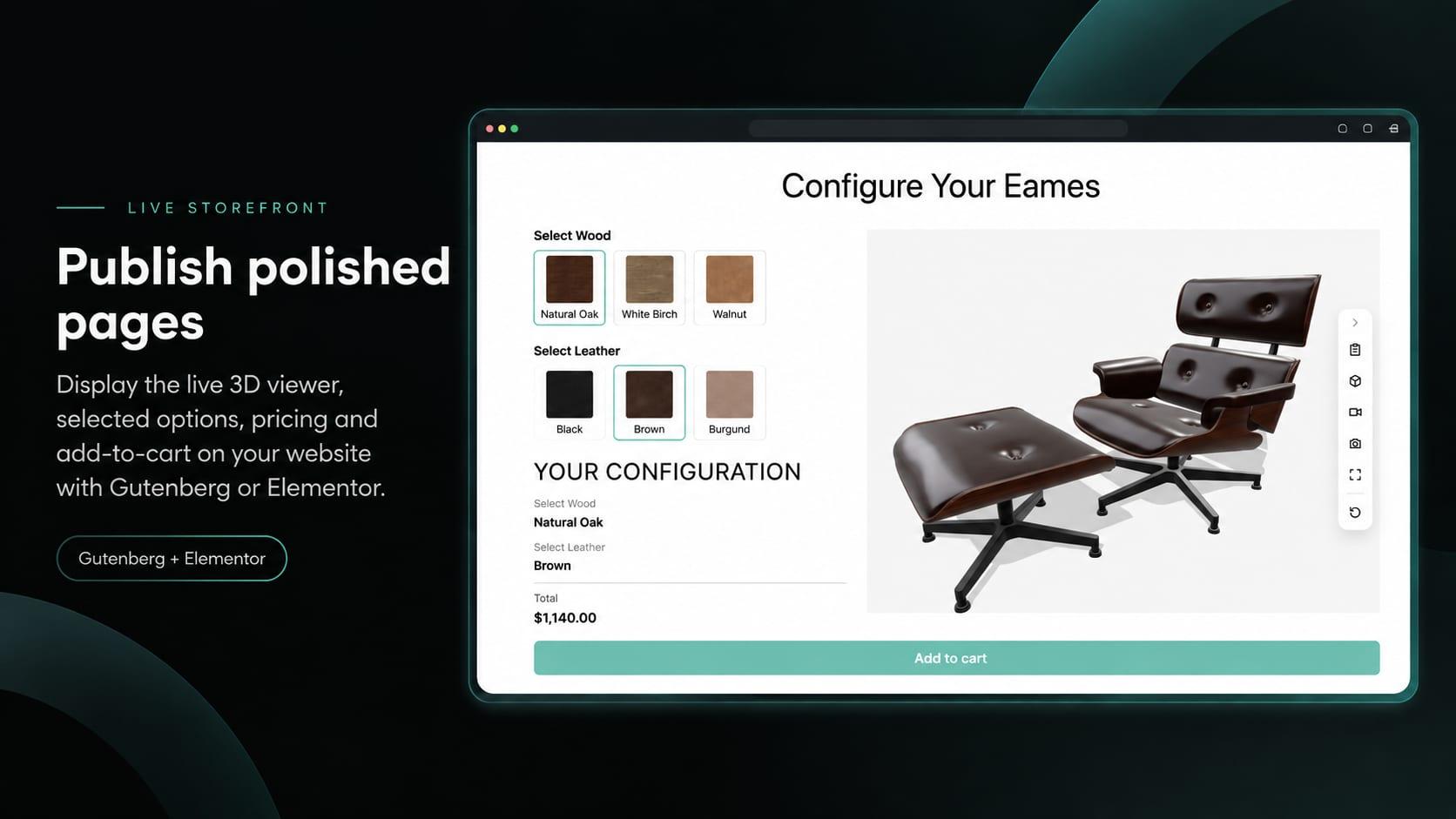
Plaats de Simplio3D-viewer, opties, prijs, samenvatting en knop Toevoegen aan winkelwagen in Elementor met de gratis Shortcode-widget: zoek uw ID's, bouw de lay-out en verbind WooCommerce.
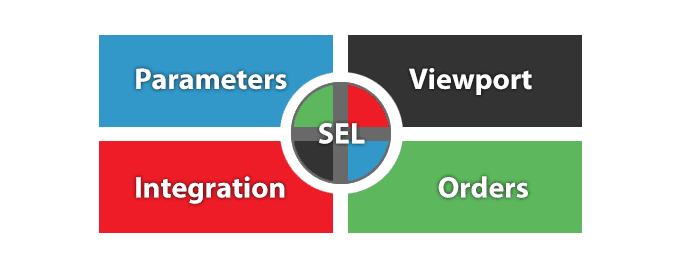
De beslissingen die bepalen of een configuratorproject succesvol is — het definiëren van de vereisten, het kiezen van het projecttype, het bouwen van opties, logica en prijsstelling, en waar AI nu het werk doet.