

Torna agli studi di caso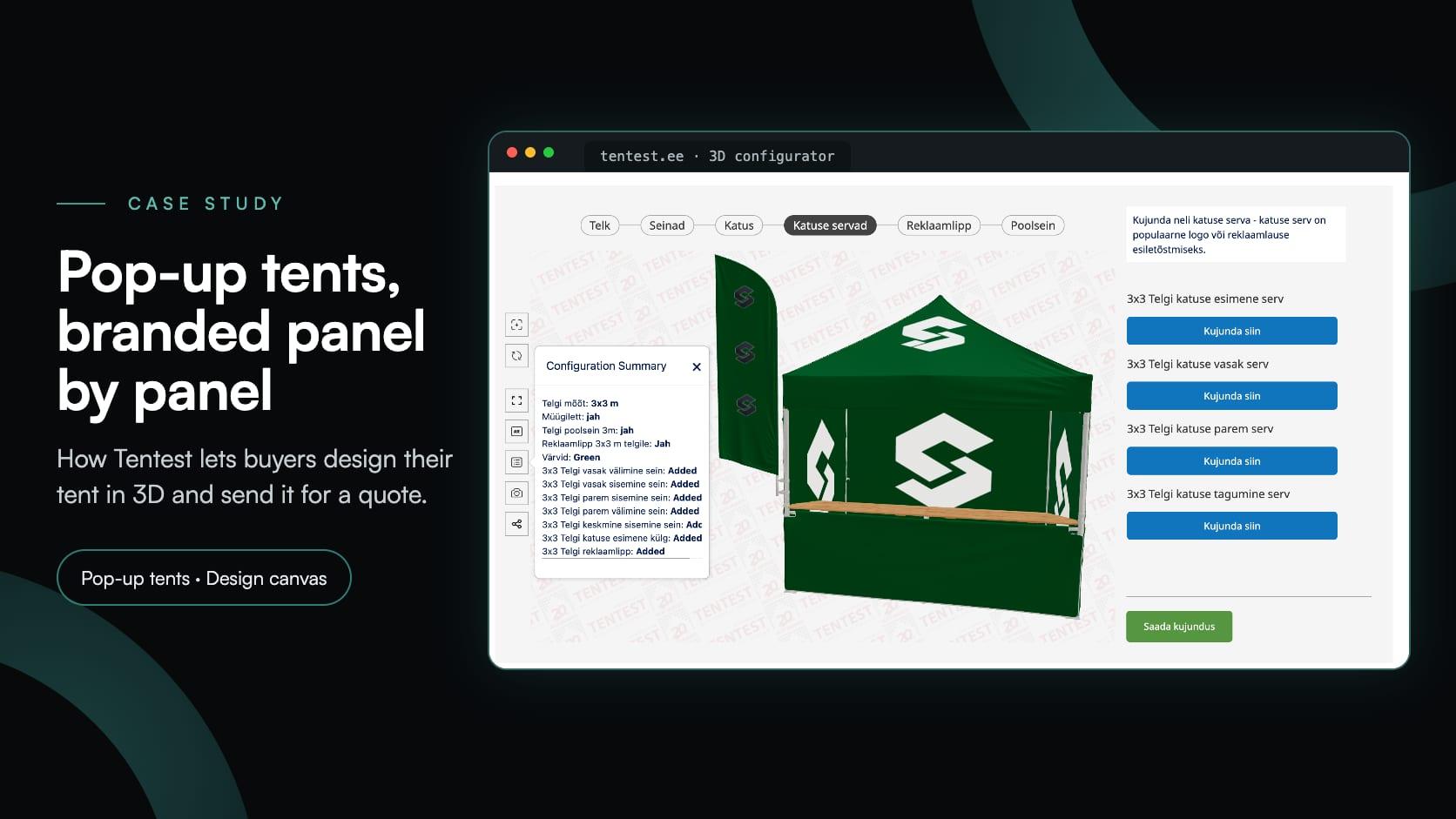
Building productsbuilding productstentsquotingarpersonalisation
Tentest: a 3D pop-up tent configurator with a design canvas on every panel
Tentest·
Tentest Trade OÜ has made and supplied pop-up tents, parasols, awnings and PVC halls since 2002, and describes itself as the largest company doing so in Estonia. Its staff assemble and check the products at its base in Peetri, on the edge of Tallinn, and it is part of Scandipro Group, which brings companies and resellers in Estonia, Finland, Sweden and Latvia together under the Scandipro brand. Tentest also prints its tents: a customer’s logo, colours and message, by thermal transfer for smaller logos and text, or digitally across the whole fabric, from the roof to the walls.
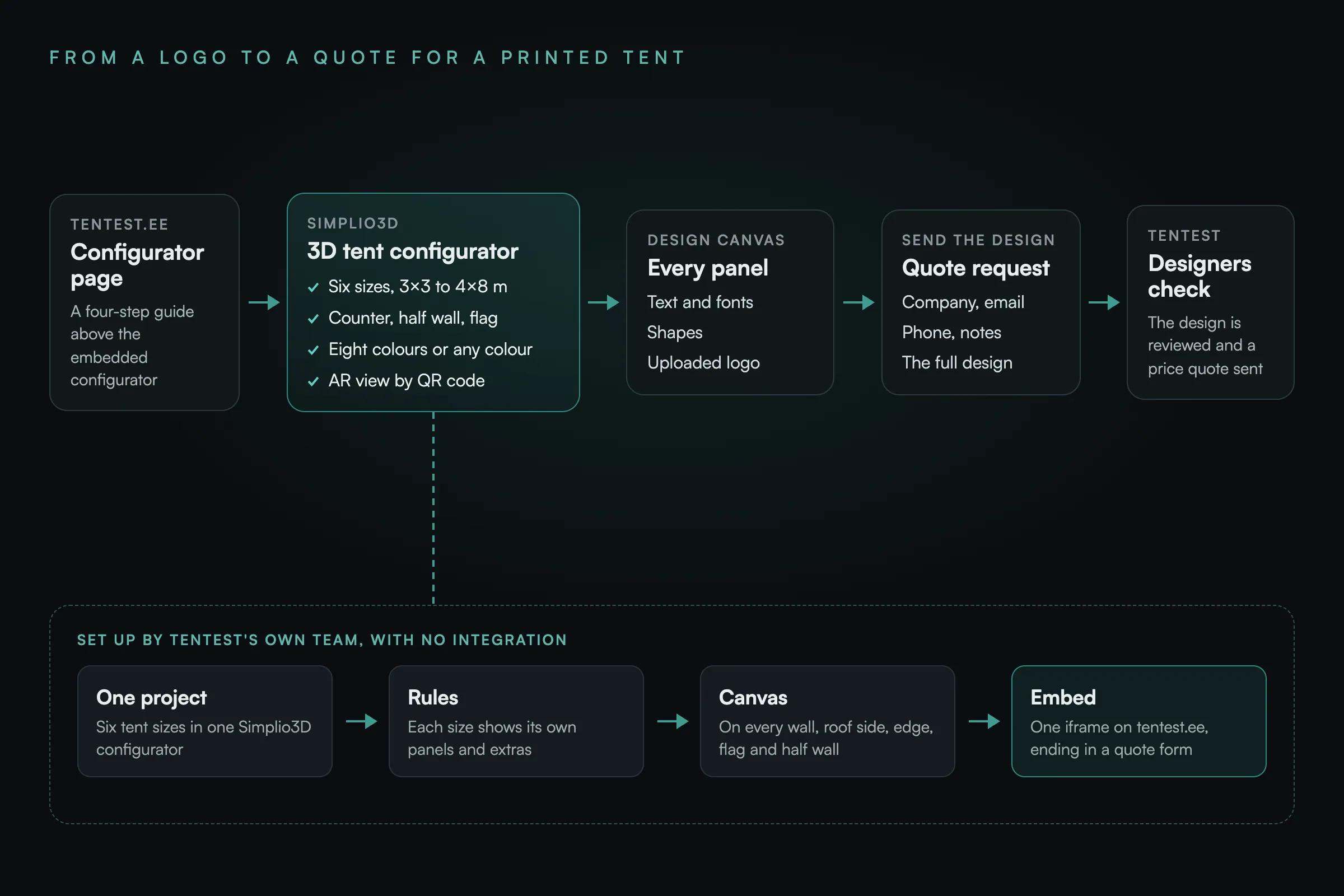
In 2025, Tentest added a pop-up tent configurator to tentest.ee, where buyers design that printed tent themselves in 3D and send it for a quote. Tentest’s own team built the whole thing in Simplio3D: the tents in six sizes, the rules between their options, a design canvas with image upload on every printable panel, an augmented reality view and the quote request form. It went onto the website with no integration at all.
| Item | Details |
|---|---|
| Client | Tentest Trade OÜ of Peetri, near Tallinn, Estonia: pop-up tents, parasols, awnings and PVC halls since 2002, and part of Scandipro Group |
| Website | tentest.ee, a WordPress site in Estonian and English |
| Configurator | Printed pop-up tents in six sizes, from 3 × 3 m to 4 × 8 m, with up to sixteen panels to design |
| Built by | Tentest’s own team, in Simplio3D: the 3D tents, options, rules, design canvases and the quote form |
| Integration | None. The configurator is embedded on one page and ends in a quote request |
| Live since | 2025, on its own page of tentest.ee |
| What the buyer sees | The tent in 3D, a design canvas for every printable panel, an AR view and a Saada kujundus (send the design) button |
A printed tent is made for one customer. Buyers needed to see their own logo and colours on the tent before asking for a price.
Walls inside and outside, each side of the roof, the roof edges, the advertising flag and the half wall can all carry print, so each needed a design of its own.
Tents from 3 × 3 m to 4 × 8 m, each with its own panels and only the extras that size offers, such as a sales counter.
Customers bring their own logos and slogans, so the configurator had to take uploaded images and free text, not only choices from a list.
Tentest’s designers review every design before quoting, so each request had to arrive with the full design and the buyer’s contact details.
A tool Tentest’s own team could build and change, without a development project or an integration to maintain.
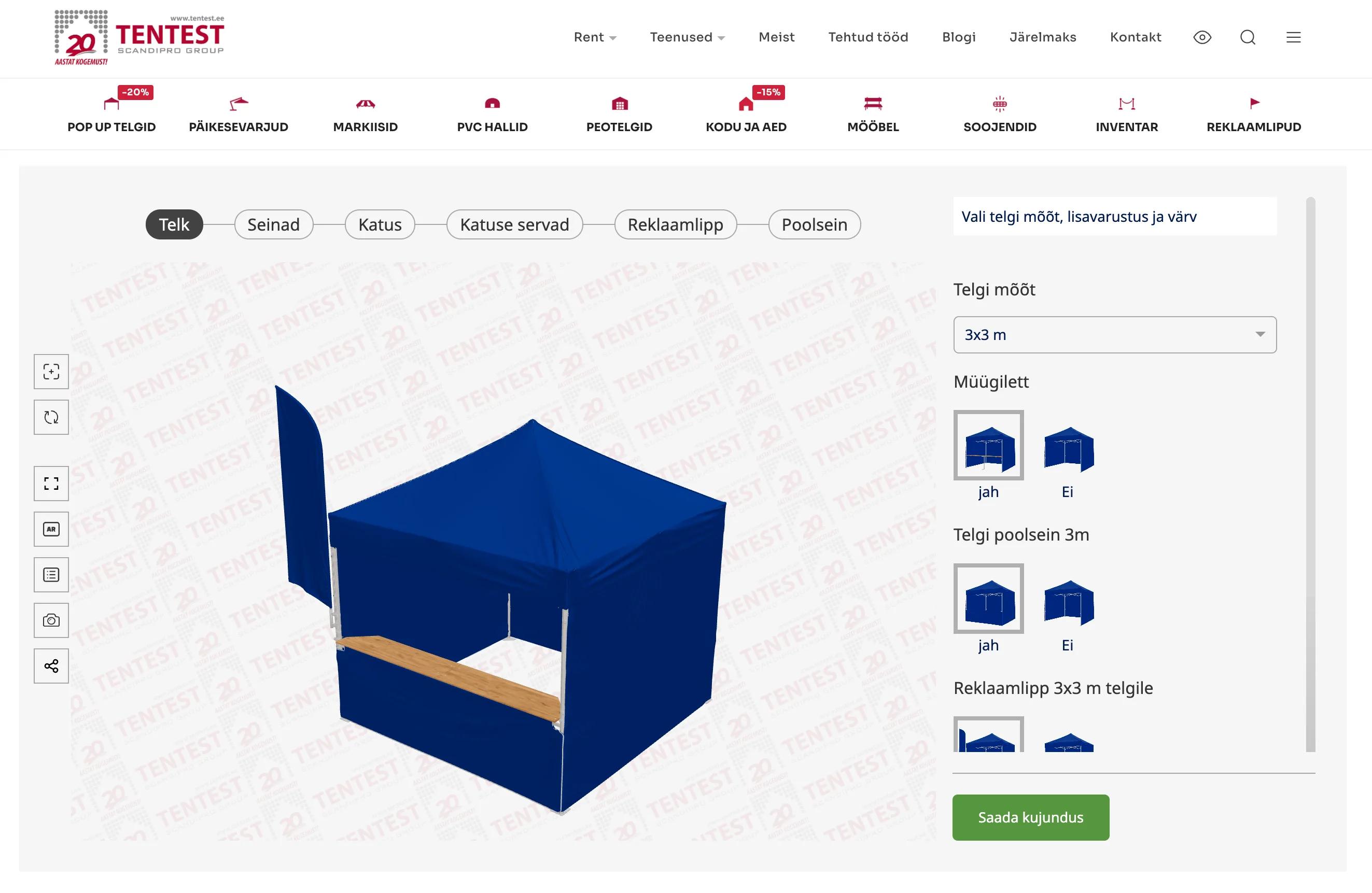
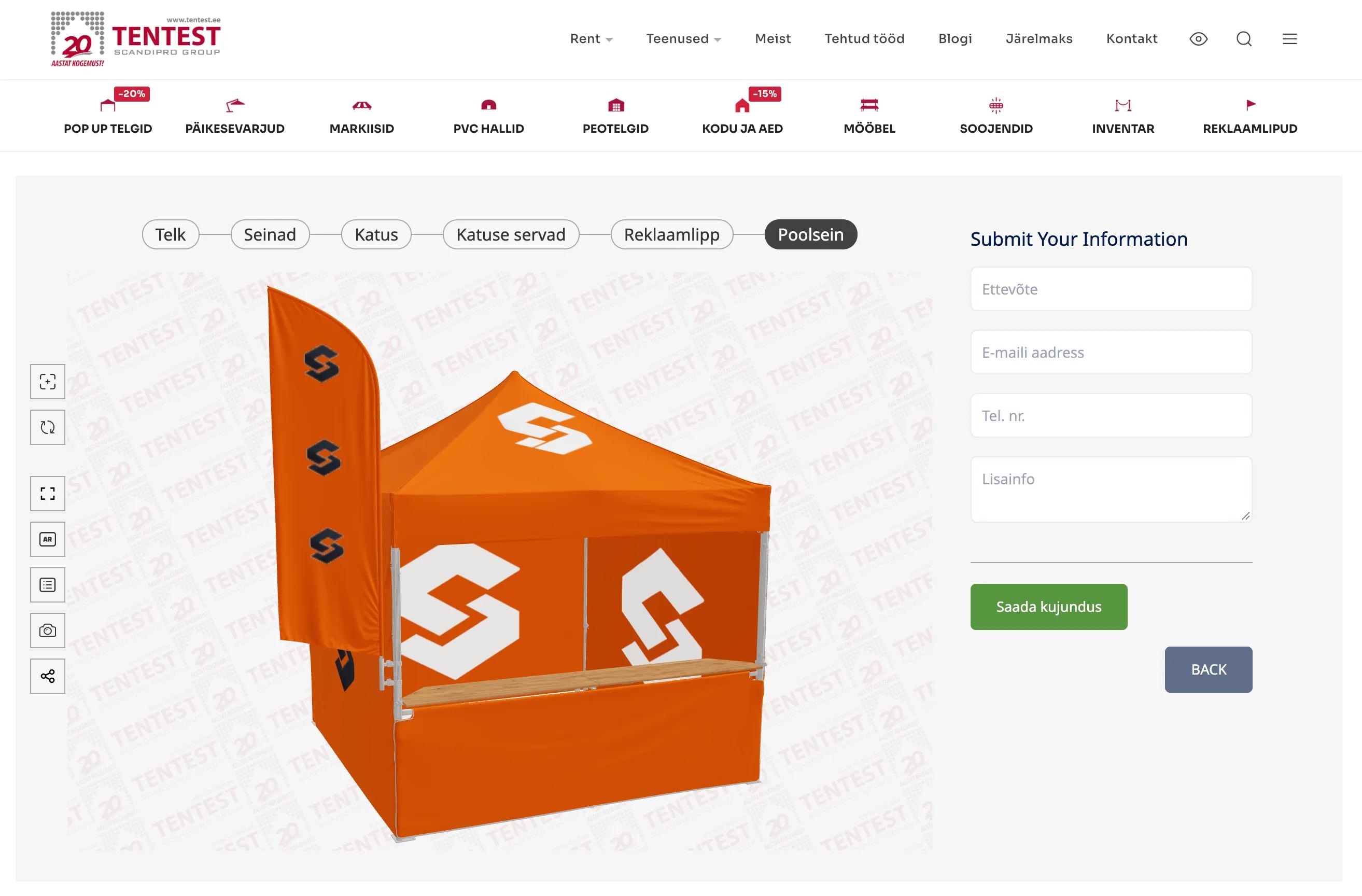
The configurator has its own page on tentest.ee, under a four-step guide: design the tent, send the design, ask Tentest if anything is unclear, and watch the video guide. Tentest’s page about printed advertising tents links to it too. The configurator is in Estonian, and six steps run along the top of the 3D view: Telk (tent), Seinad (walls), Katus (roof), Katuse servad (roof edges), Reklaamlipp (advertising flag) and Poolsein (half wall). A short note above the options explains each step.
The first step sets up the tent. A drop-down offers six sizes, from 3 × 3 m to 4 × 8 m, and the 3D model changes with it. Picture choices add or remove a sales counter, a half wall and an advertising flag, and the model shows or hides each one as it is chosen. Eight swatches cover blue, green, yellow, orange, grey, white, black and red, and a colour wheel opens a picker for any other colour, down to its hex code.
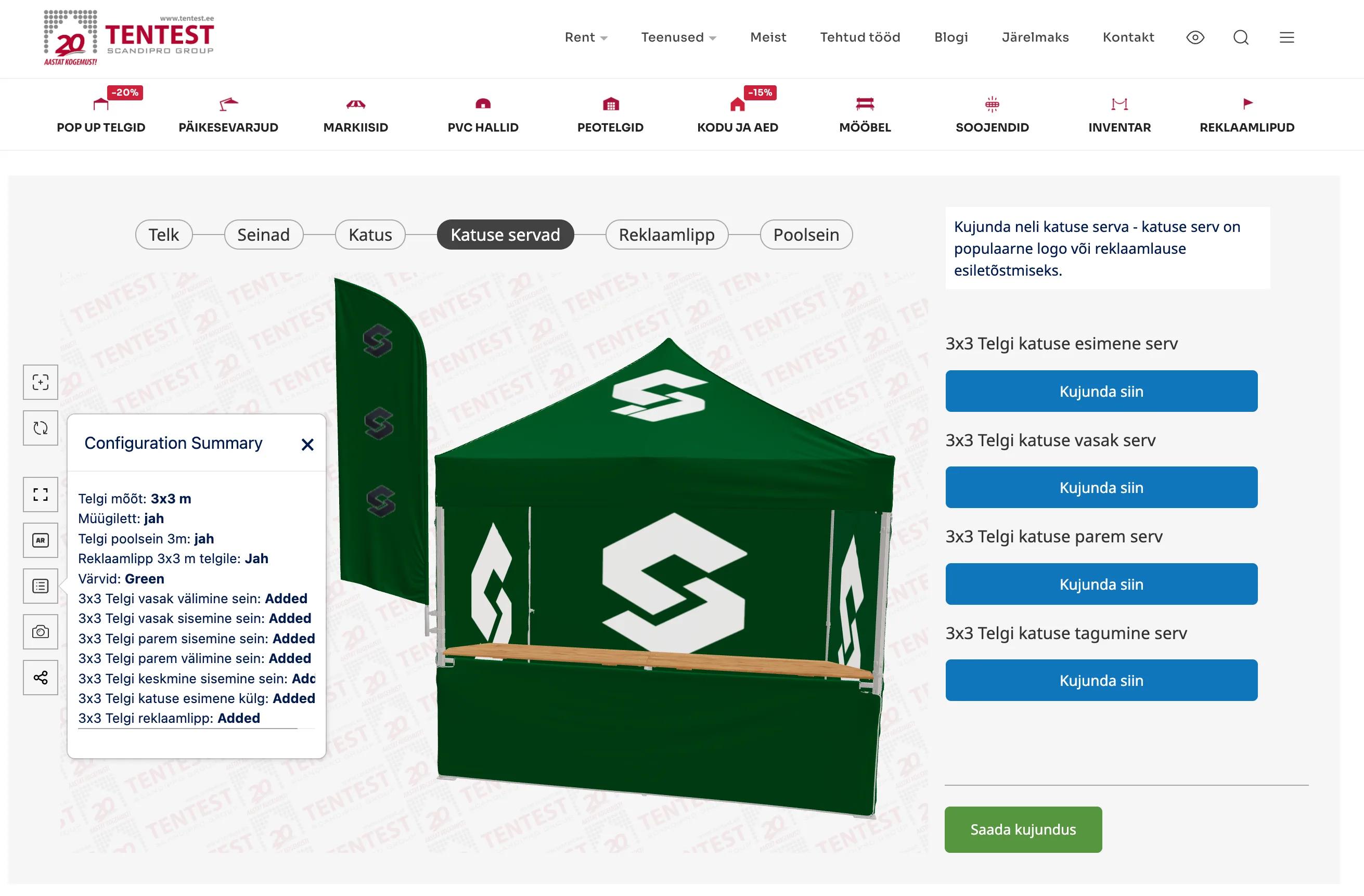
The next five steps are about print. Each printable part of the tent has its own Kujunda siin (design here) button: the left, right and back walls, inside and out; the four sides of the roof; the four roof edges, which the configurator’s note calls a popular place for a logo or a slogan; the flag; and the half wall.
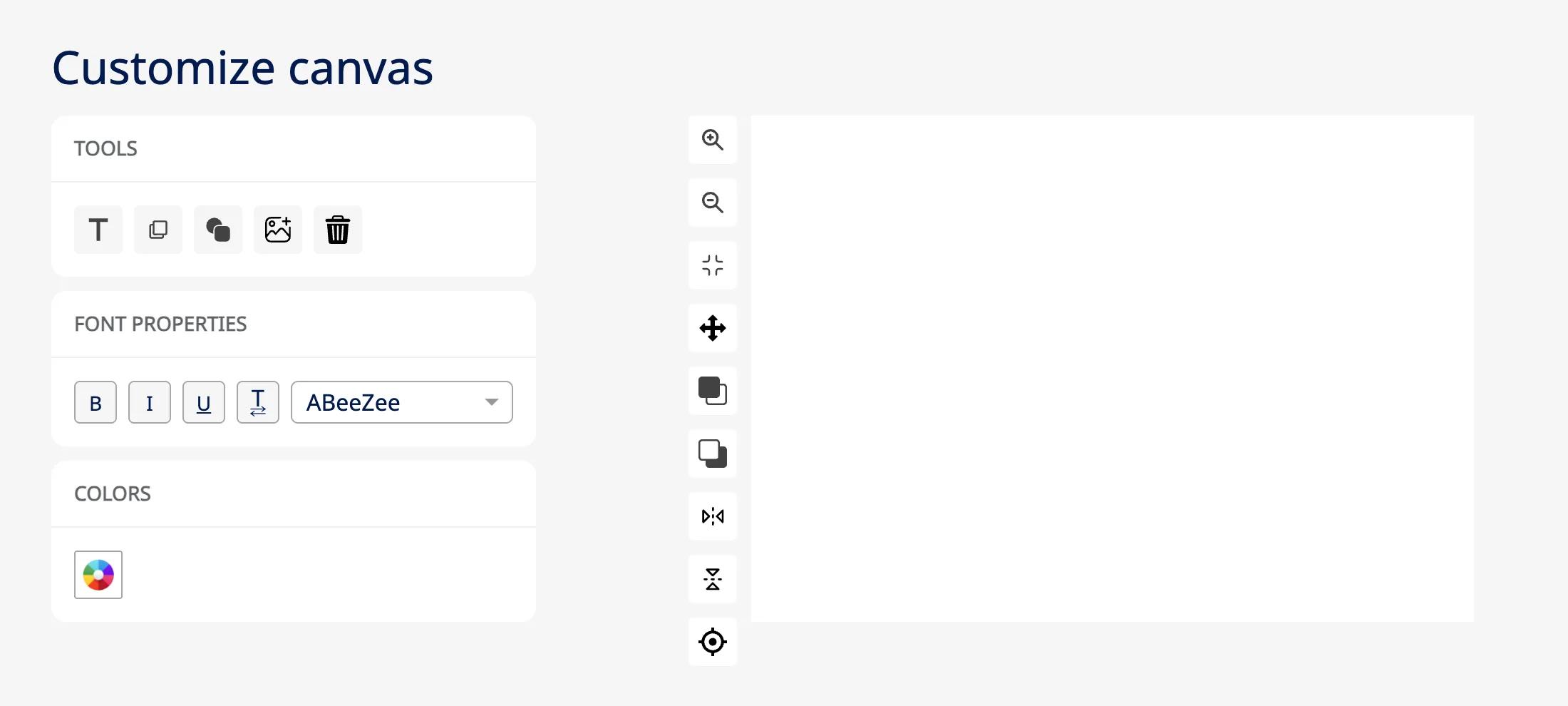
Every Kujunda siin button opens the same editor, Customize canvas, laid out to the shape of its panel: a long strip for a roof edge, a large rectangle for a wall. Tentest added one of these canvases to each printable part of the tent, so a single tent has up to sixteen of them.
Pressing OK puts the design on the tent in 3D. The configuration summary then lists every panel that has a design as Added, so the buyer can check that nothing is missing before sending it.
Conditional logic keeps the configurator to what Tentest makes. The tent size decides which options appear:
Choose another size and the options that do not fit it are hidden, while the panels to design switch to those of the new size. Go back to 3 × 3 m and the counter and half wall return. The yes-or-no choices work on the model as well: switching off the counter, the half wall or the flag hides that part of the tent in 3D.
Six steps, in the order the configurator shows them. The size chosen in the first step decides the panels in the others.
| Step | What the buyer chooses |
|---|---|
| Telk (tent) | Size: 3 × 3, 3 × 4.5, 3 × 6, 4 × 4, 4 × 6 or 4 × 8 m. Extras, each yes or no: sales counter (3 × 3 m), half wall (3 × 3 and 4 × 4 m) and advertising flag (every size). Colour: blue, green, yellow, orange, grey, white, black or red, or any colour from the picker |
| Seinad (walls) | A design for each of six wall panels: left, right and back, inside and outside |
| Katus (roof) | A design for each side of the roof: front, left, right and back |
| Katuse servad (roof edges) | A design for each of the four roof edges, a popular place for a logo or a slogan |
| Reklaamlipp (flag) | A design for the advertising flag of the chosen size |
| Poolsein (half wall) | A design for the half wall, on the 3 × 3 m and 4 × 4 m tents |
A toolbar beside the 3D view holds the viewing tools: reset the camera, start over, full screen, the configuration summary, a screenshot, a share link and AR. On a computer, the AR button shows a QR code. Scanned with a phone, it opens the configured tent in augmented reality, so the buyer can see it in place before sending the design. More on AR and sharing: the 3D product viewer.
In the Telk (tent) step, pick one of six sizes, add or remove the sales counter, half wall and flag where the size has them, and choose a colour.
Press Kujunda siin (design here) on any wall, roof side, roof edge, the flag or the half wall. Add text, shapes and an uploaded logo on the canvas, then press OK.
Turn the tent to see every side. The summary lists each designed panel as Added, and the AR button brings the tent onto a phone.
Saada kujundus (send the design) opens a short form: company and email, with a phone number and notes if needed.
Tentest’s designers check the design and reply with a price quote.
Tentest’s configurator shows no prices and has no checkout. Every printed tent is checked by Tentest’s designers before it is priced, so the last step is a request. Saada kujundus (send the design) opens a short form, Submit Your Information, which asks for the company and an email address, with a phone number and additional information as options. The request reaches Tentest with the tent’s configuration and its design, and Tentest’s designers check it and send a price quote. If anything is unclear, the page invites buyers to write, call or visit the showroom.
That choice also kept the build simple. There is no shop to connect and no plugin to install: the configurator is embedded in a WordPress page on tentest.ee, and the English version of the page shows the same configurator.
Customers put their own logo, text and colours on any panel and see the finished tent in 3D, or in AR, before they ask for a price.
Each request reaches Tentest with the tent’s size, extras and colour and the design for every panel, ready for its designers to check and quote.
Tentest built it without a developer, so changing a size, a colour or a printable panel is in its own hands.
I set up the whole configurator myself: the six tent sizes, the colours, a design canvas on every panel and the quote form at the end. Customers can now upload their own logo, put it on the roof, the walls or the flag, and see the finished tent in 3D, and even in augmented reality, before they send it to us. For a company of our size it was affordable, and whenever I had a technical question, Simplio3D’s support team was quick and genuinely helpful. The designs that reach us are already worked out, so our designers can check them and prepare the quote.
A 3D tool in which a buyer chooses a pop-up tent’s size, extras and colour and designs its printed panels, then orders the tent or asks for a quote. Tentest’s runs in the browser on tentest.ee and ends in a quote request.
No. Tentest’s own team built the configurator in Simplio3D and embedded it on its WordPress site. Because it ends in a quote request, there is no shop or checkout to connect.
Yes. The design canvas on each panel has an Upload tool for images such as a logo, alongside text in a choice of fonts, shapes, colours and layers.
With conditional logic tied to the tent size. The sales counter appears only for the 3 × 3 m tent and the half wall only for 3 × 3 m and 4 × 4 m, and the walls, roof sides and roof edges to design always belong to the chosen size. Switching an extra off also hides it on the 3D model.
Yes. On a computer, the AR button shows a QR code, and a phone that scans it opens the configured tent in augmented reality.
Every printed tent is checked by Tentest’s designers before it is priced. The configurator collects the design and the buyer’s details, and Tentest replies with a quote.
None of this section is part of the Tentest configurator described above, which runs on the earlier version of Simplio3D. For a tent maker starting now:
How Iberica Stone lets buyers explore a premium stone table in 3D and AR, then request a quote.
How Fill it Forward lets customers personalise reusable water bottles in 3D, with orders flowing into its ERP.
Span, length, height, cladding and openings, priced as the customer chooses.
Possiedi un configuratore di prodotto 3D per aumentare le vendite e generare proposte direttamente dal tuo sito web.
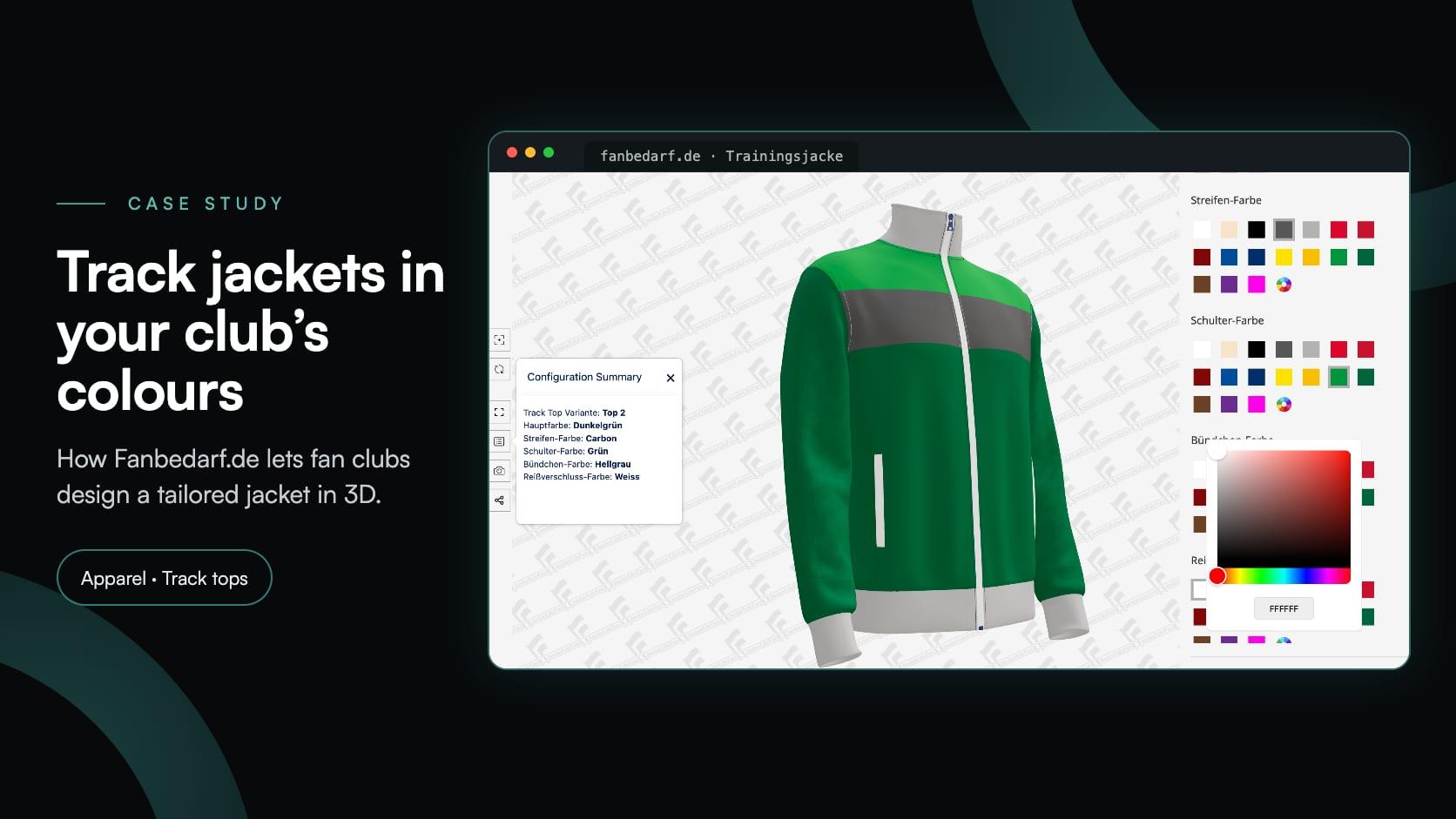
Fanbedarf.de, un laboratorio di abbigliamento per club di Norimberga, ha aggiunto un configuratore 3D di giacche: quattro modelli di felpe da tuta, 17 colori di tessuto per ogni parte della giacca e una richiesta senza impegno.
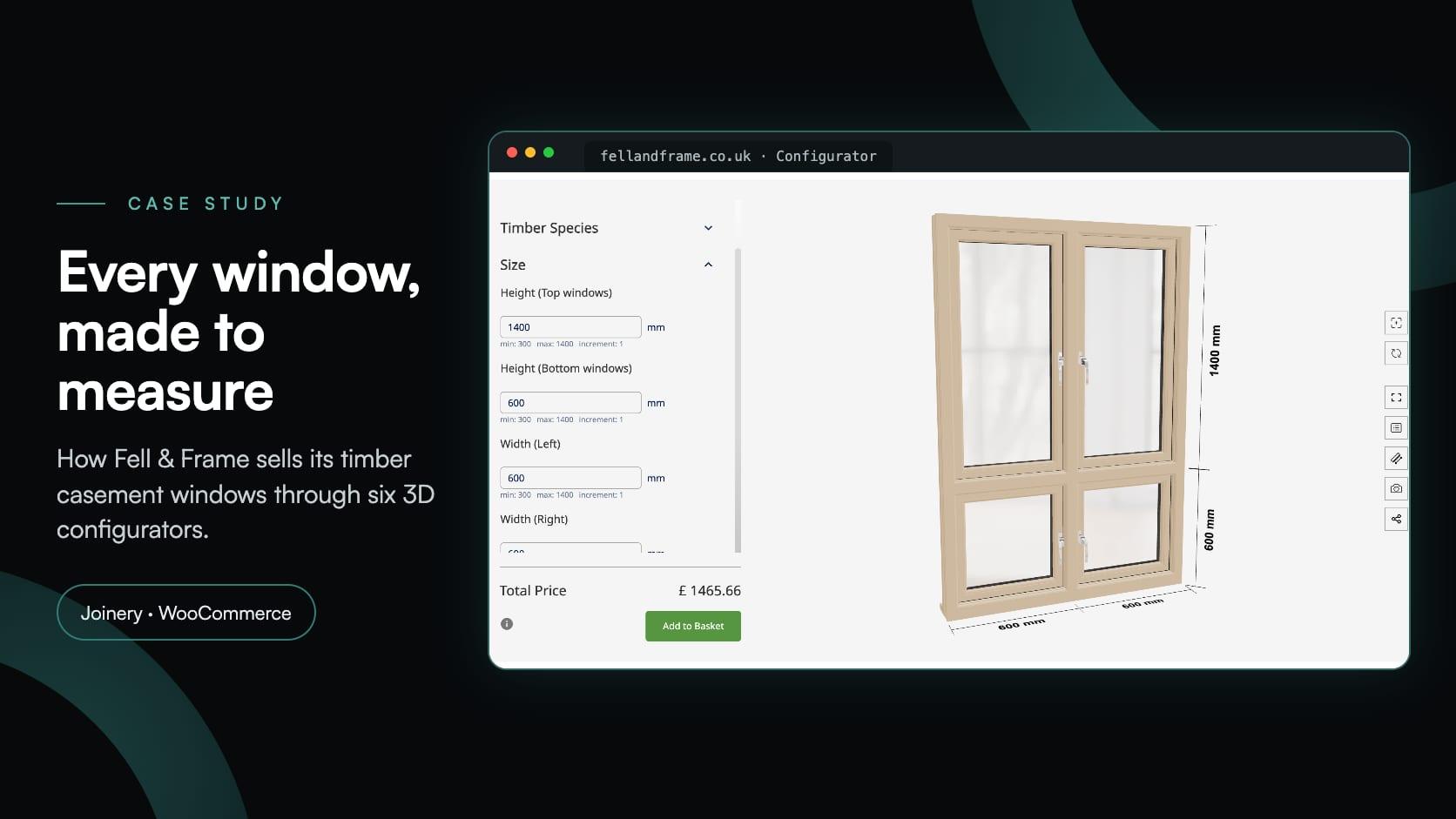
Fell & Frame, una falegnameria di Carlisle, ha creato il proprio configuratore di finestre in legno in Simplio3D. Gli acquirenti possono dimensionare al millimetro sei tipi di finestre a battente e aggiungerle al carrello di WooCommerce.
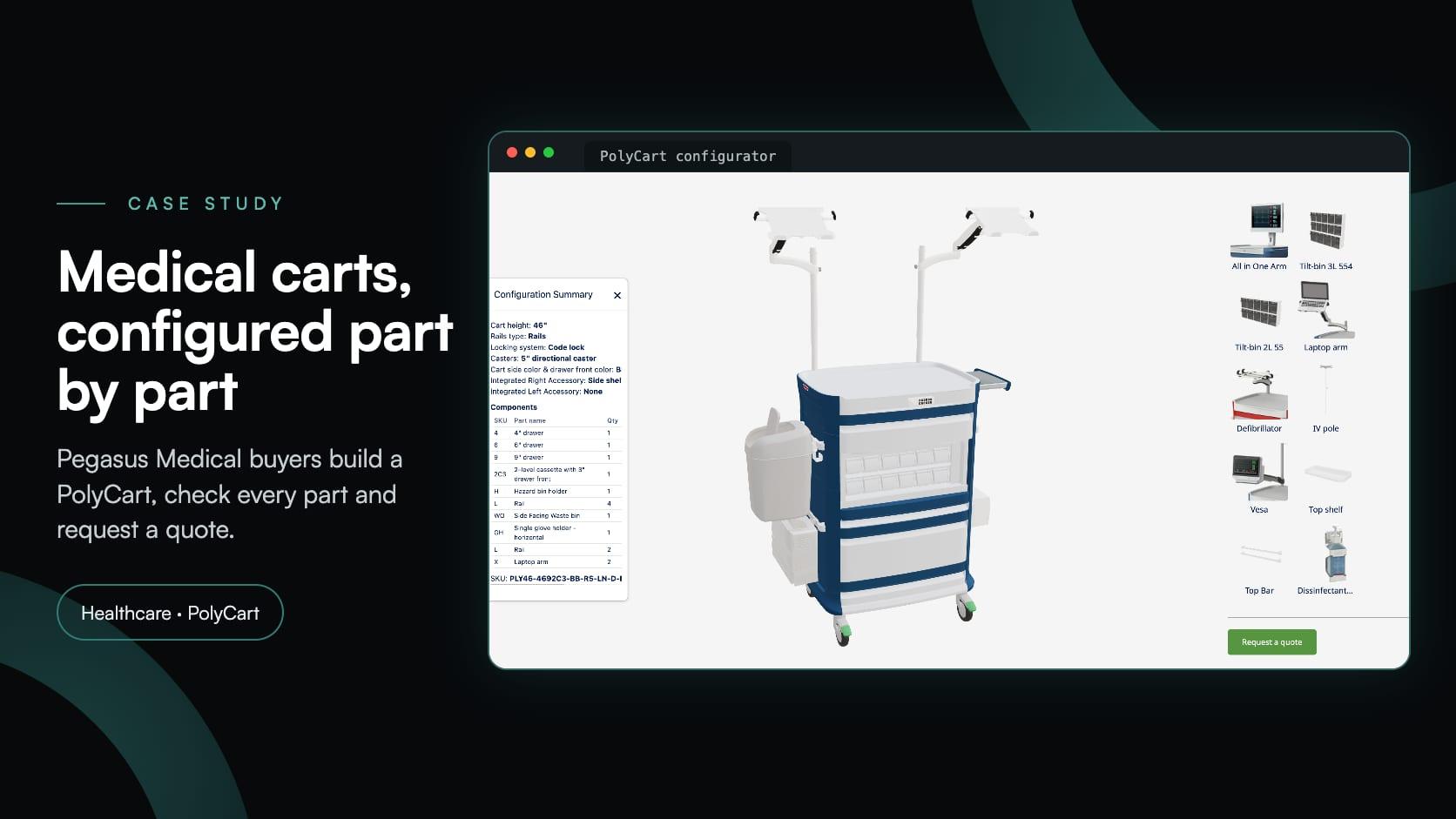
Pegasus Medical desiderava consentire agli acquirenti di configurare in 3D i carrelli medicali PolyCart e richiedere un preventivo, senza dover pagare per software personalizzato. Simplio3D ha contribuito all'implementazione; ora il loro team lo gestisce autonomamente.